Documentation
A0 CLI Connector
Connect Agent Zero to your terminal, local project files, and approved browser while Agent Zero stays safely sandboxed in Docker.
- Install A0 CLI on the host machine
- Connect to the running Agent Zero Web UI
- Work with local files and terminal controls
- Allow host Computer Use only when you want desktop control
- Use Bring Your Own Browser when a browser profile should stay on your computer

Install A0 CLI
Run the installer on your host computer, not inside the Agent Zero container.
macOS / Linux
curl -LsSf https://cli.agent-zero.ai/install.sh | shWindows PowerShell
irm https://cli.agent-zero.ai/install.ps1 | iexOpen It And Connect
- Make sure Agent Zero is already running.
- Run
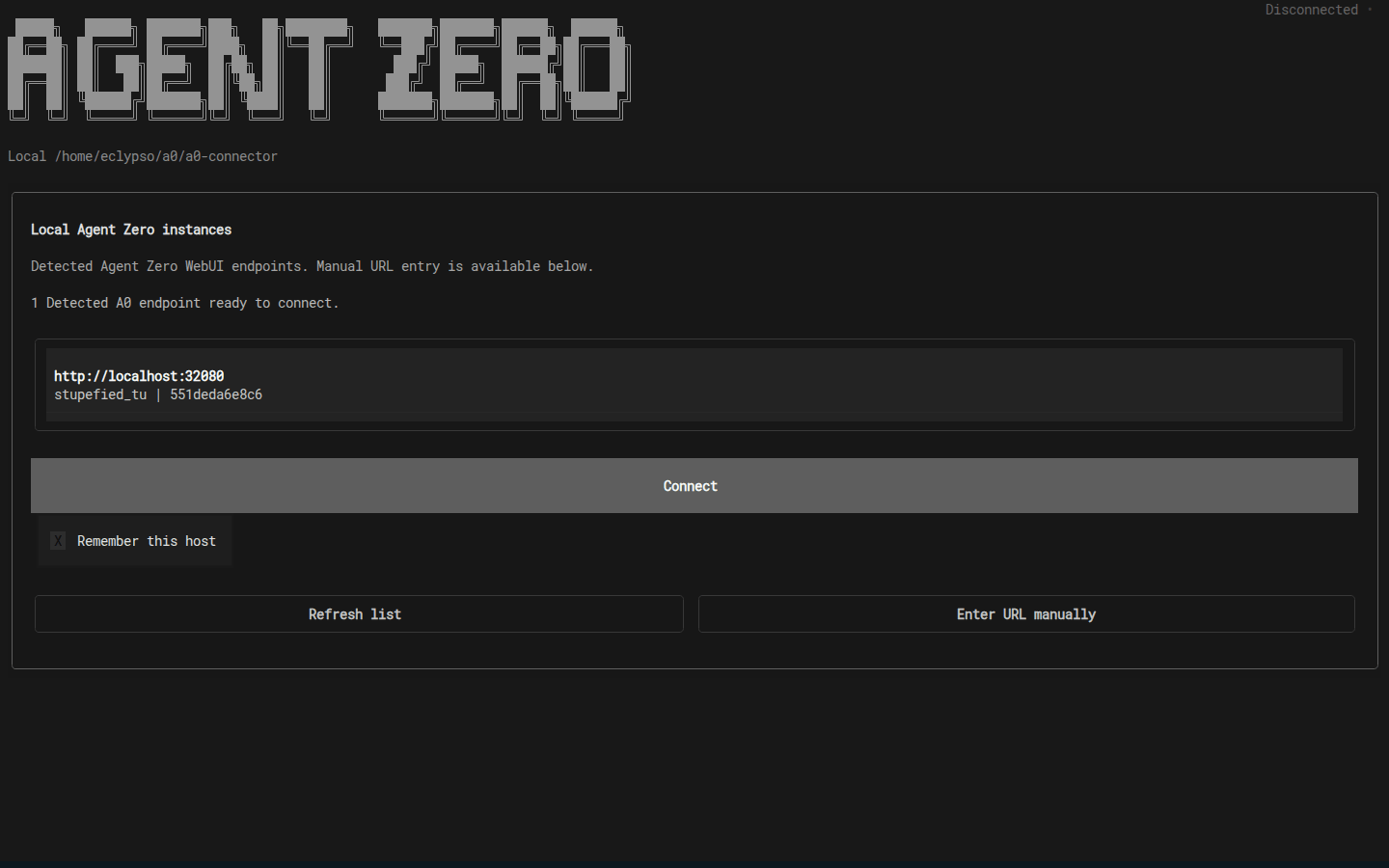
a0on your host machine. - If Agent Zero is on the same computer, click Connect in the host picker.
- If Agent Zero is somewhere else, choose Enter URL manually and paste the Web UI address.
- Open or create a chat and confirm you can talk to Agent Zero from the terminal.
Useful launch options
a0 --host http://localhost:32080
a0 --no-auto-connect
a0 --no-docker-discovery
You can also set AGENT_ZERO_HOST=http://localhost:32080 before launching a0.
Use The Connected Shell
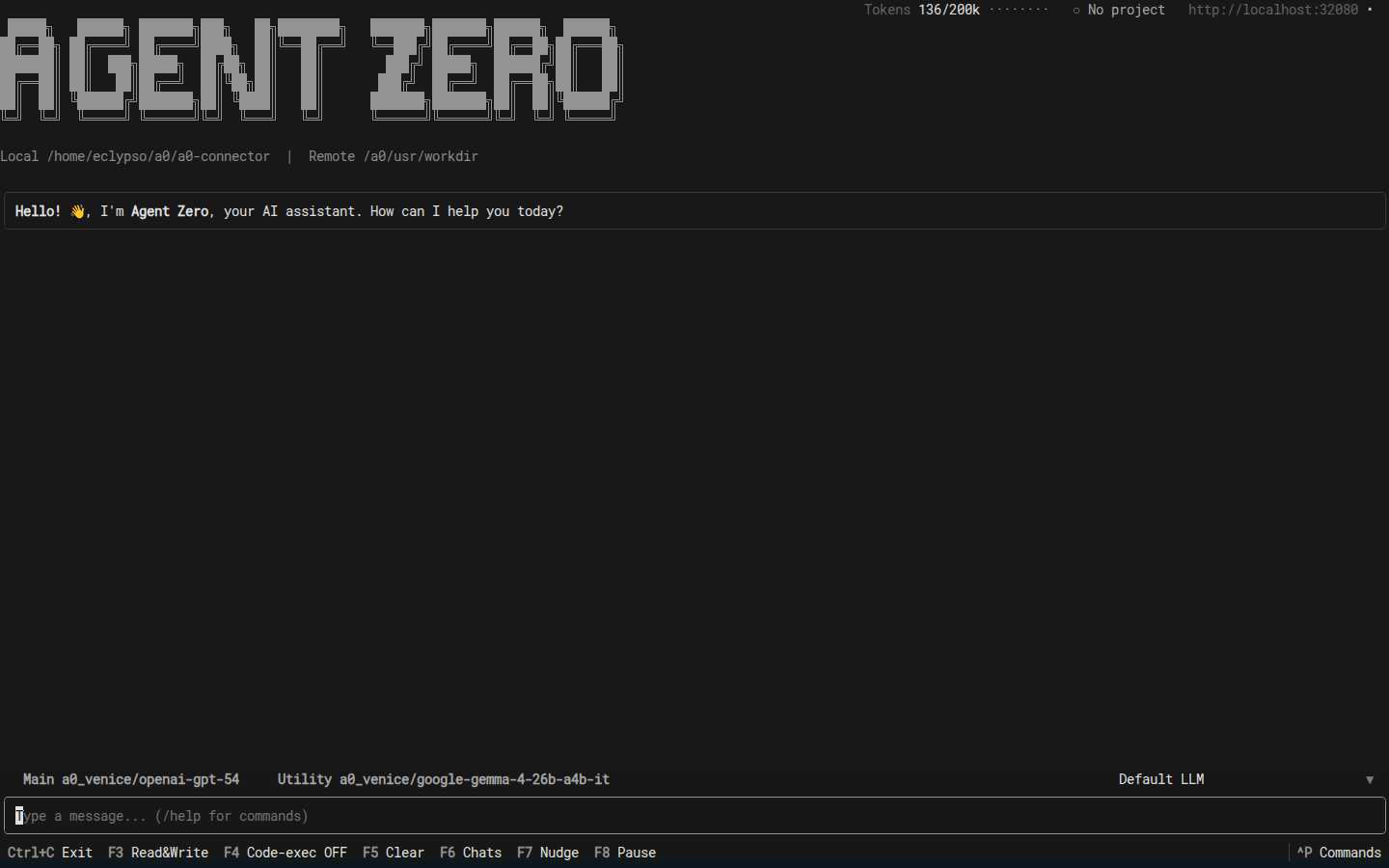
After connecting, the shell shows the Agent Zero address, active project, selected model, local folder, Agent Zero workspace, and message box.
| Key | Action |
|---|---|
F3 | Toggle host file read/write access for the active CLI session. |
F4 | Toggle remote code execution through the active CLI session. |
F5 | Clear the visible chat log. |
F6 | Open the chat list. |
F7 | Nudge the active agent run. |
F8 | Pause the active agent run. |
Ctrl+P | Open the command palette. Use this if your terminal captures function keys. |
Slash Commands
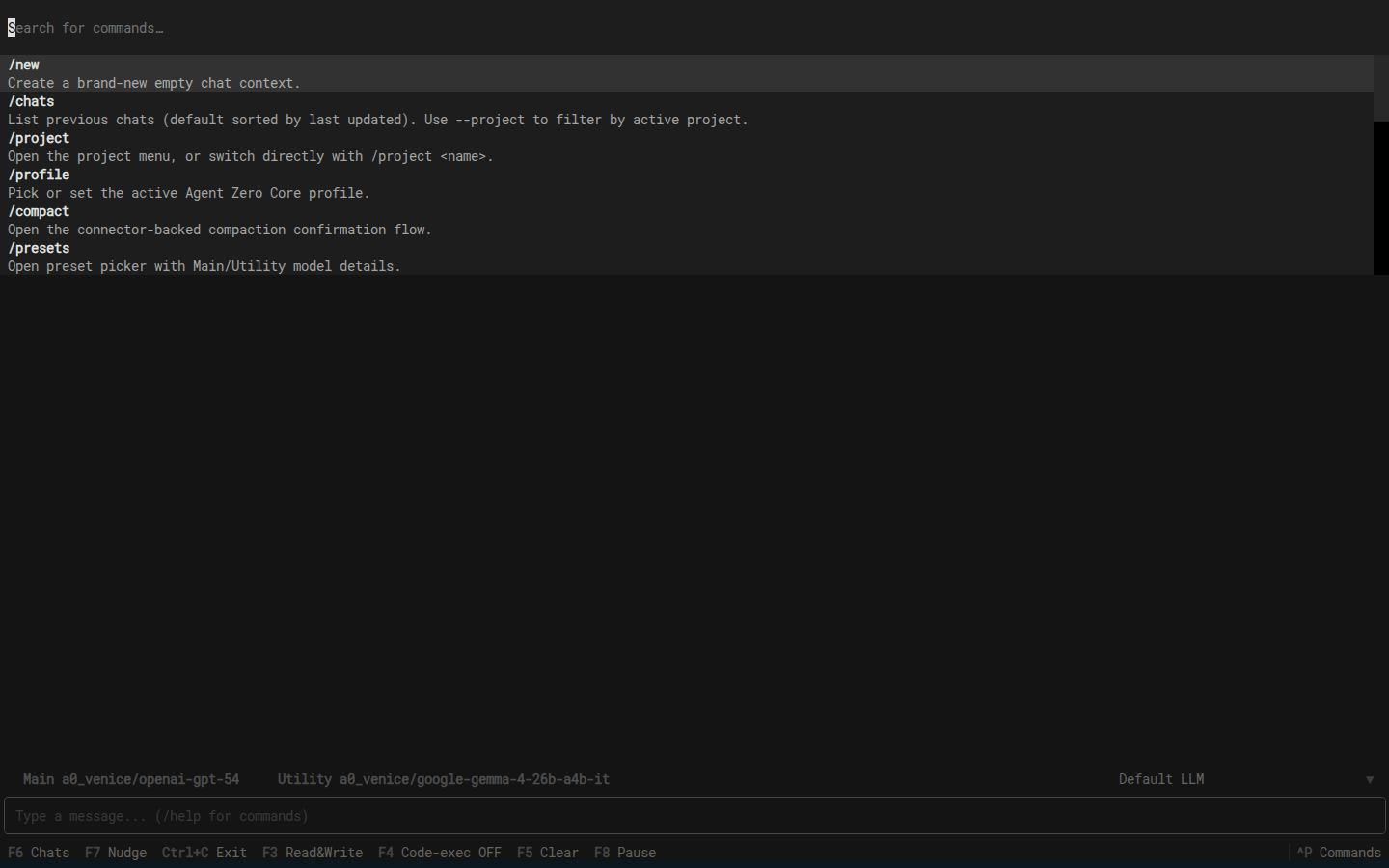
Type a slash command in the message box and press Enter. Most commands are also available from Ctrl+P.
| Command | Use it for |
|---|---|
/new | Create a new empty chat. |
/chats | List previous chats. |
/project | Open the project menu or switch directly with /project <name>. |
/profile | Open the profile menu; add a name to select, or a quoted name and instructions to create. |
/permissions | Edit Tool, MCP, and Skill access for the current profile. |
/presets | Choose a model preset. |
/models | Edit the active models. |
/browser | Check Browser mode. |
/browser list, /browser auto, /browser 1, /browser ws://... | List host-browser targets, return to automatic selection, or choose a specific debug endpoint. |
/computer-use | Open the host Computer Use controls in A0 CLI. Type /computer-use on to allow desktop control and /computer-use off to turn it back off. |
/attach | Attach local image files to the next message. |
/pause, /resume, /nudge | Control the active run. |
Create profiles and edit permissions
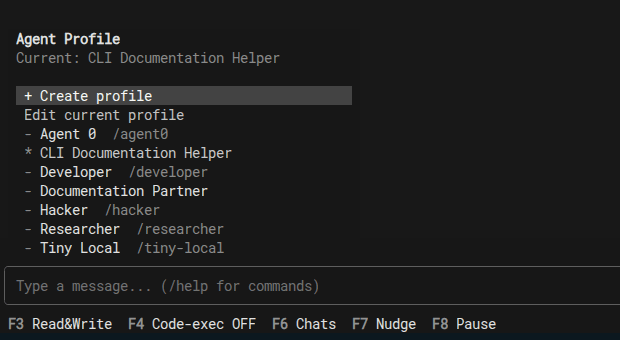
/profile
/profile Developer
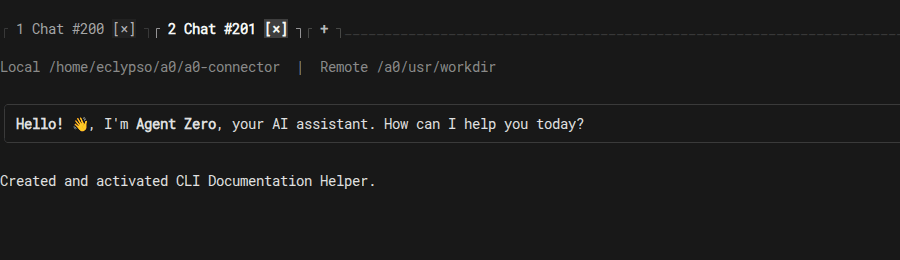
/profile "Source Scout" "Verify every important claim and cite the source."
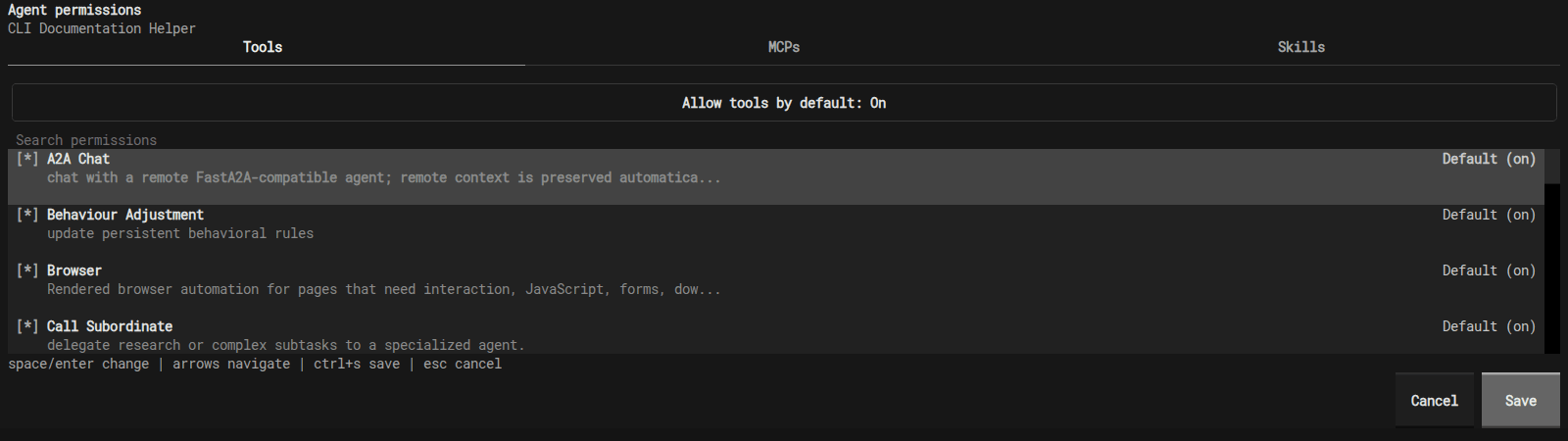
/permissions
/profile opens the compact menu. Use an unquoted name or ID to select an existing profile. A quoted name and instructions creates a profile in the current chat's Global or project scope, then opens a fresh chat with it selected.
/permissions edits Tools, MCPs, and Skills for the current profile. Move each item through Default, On, and Off, then save. The CLI derives scope from the current chat; use the Web UI's Manage agents screen for availability, duplicate, delete, and explicit scope selection.
See Agent Editor and Profiles for Easy and Advanced mode, project availability, and manual policy files.
Allow Computer Use
Use Computer Use when you want Agent Zero to control apps on your host desktop through the connected A0 CLI. Type /computer-use in the CLI to open its controls. When you are ready to allow desktop control, type /computer-use on; the CLI switches to Allow mode and handles any platform permission prompt that is needed.
/computer-use
/computer-use on
/computer-use status
/computer-use off
Important: leave Computer Use off unless you trust the Agent Zero instance and want it to capture the screen, click, type, or scroll on your host computer. Use /computer-use off when the desktop-control part of the task is done.
Bring Your Own Browser
Bring Your Own Browser lets Agent Zero use Chrome, Edge, Brave, Opera, Vivaldi, or Chromium on your computer through A0 CLI. Use it when a page, login, or browser profile should stay on your machine. Once A0 CLI is connected and host browser mode is active, you can start and steer the host browser from either A0 CLI or the Agent Zero Web UI.
- Keep A0 CLI connected to the Agent Zero chat.
- In Browser settings, choose Bring Your Own Browser.
- If you want Agent Zero to use an already-open browser window, open that browser first.
- Open its remote debugging page: Chrome, Edge, Brave, Vivaldi, and Chromium use
chrome://inspect/#remote-debugging; Opera usesopera://inspect/#remote-debugging. - Enable Allow remote debugging for this browser instance.
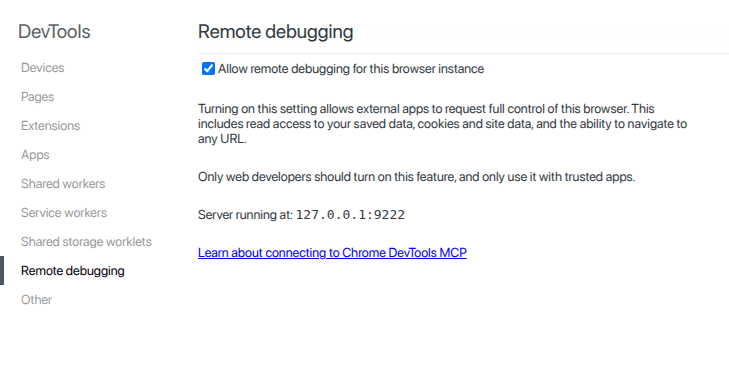
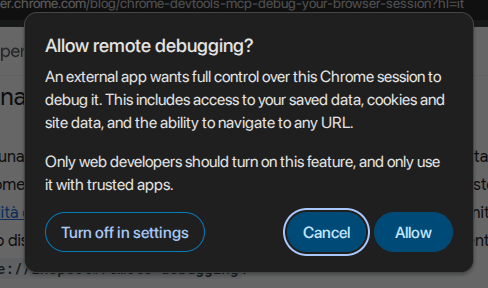
Important: remote debugging grants control of that browser session, including saved data, cookies, site data, and navigation. Use it only with trusted Agent Zero instances and browser windows you intend Agent Zero to control.
Helpful browser commands
/browser status
/browser list
/browser auto
/browser 1
/browser ws://127.0.0.1:9222/devtools/browser/...
/browser host on
/browser relaunch
/browser container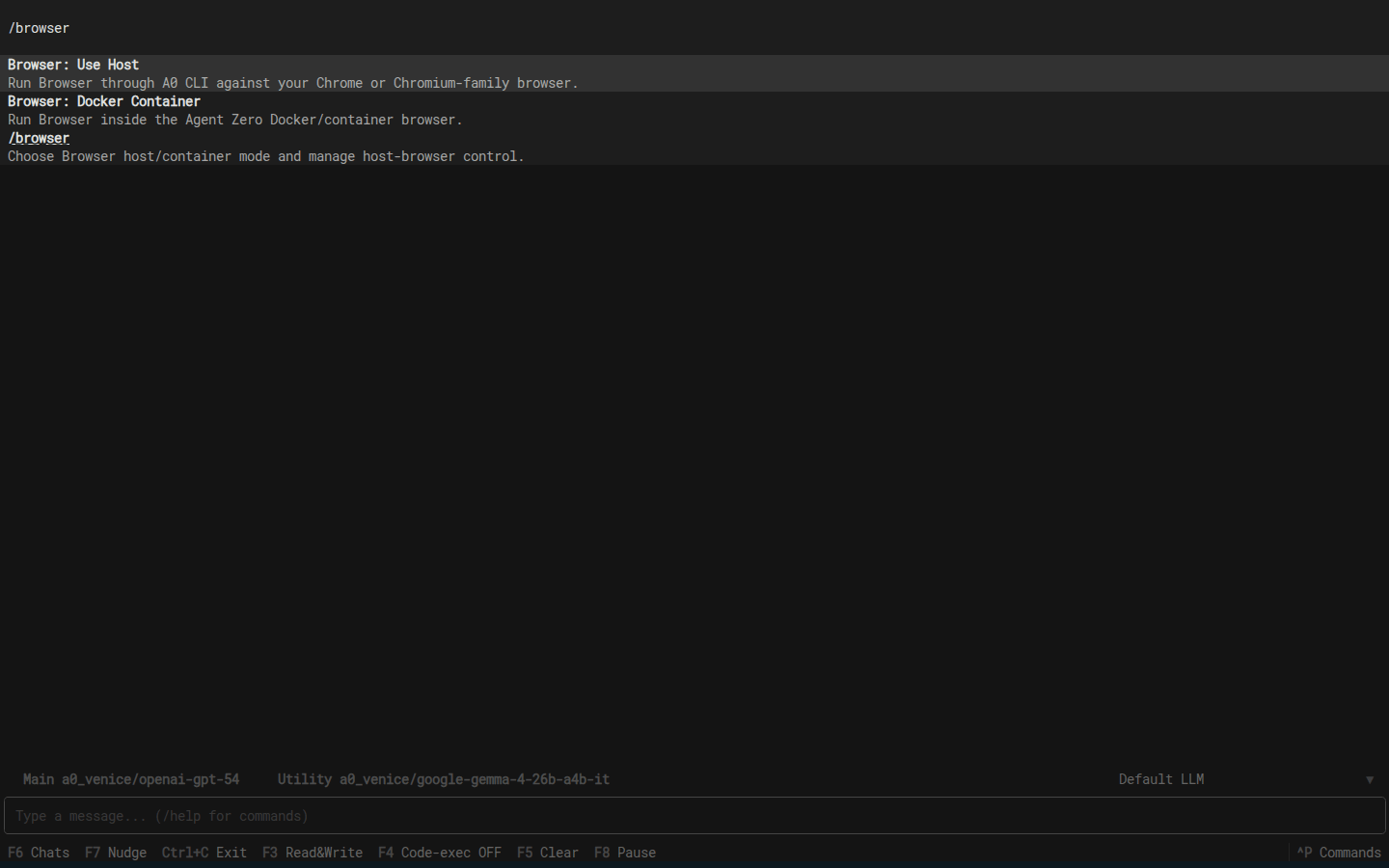
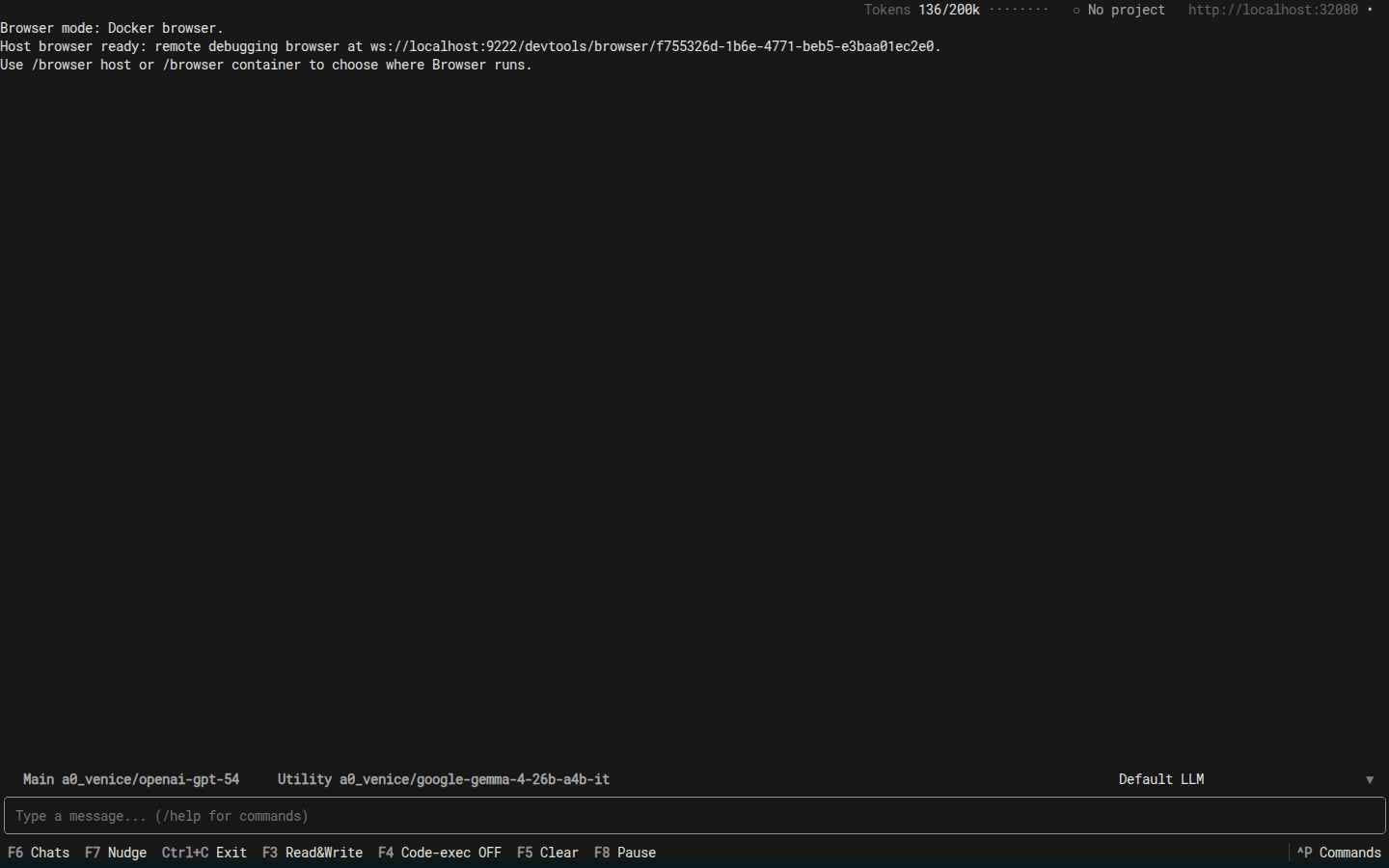
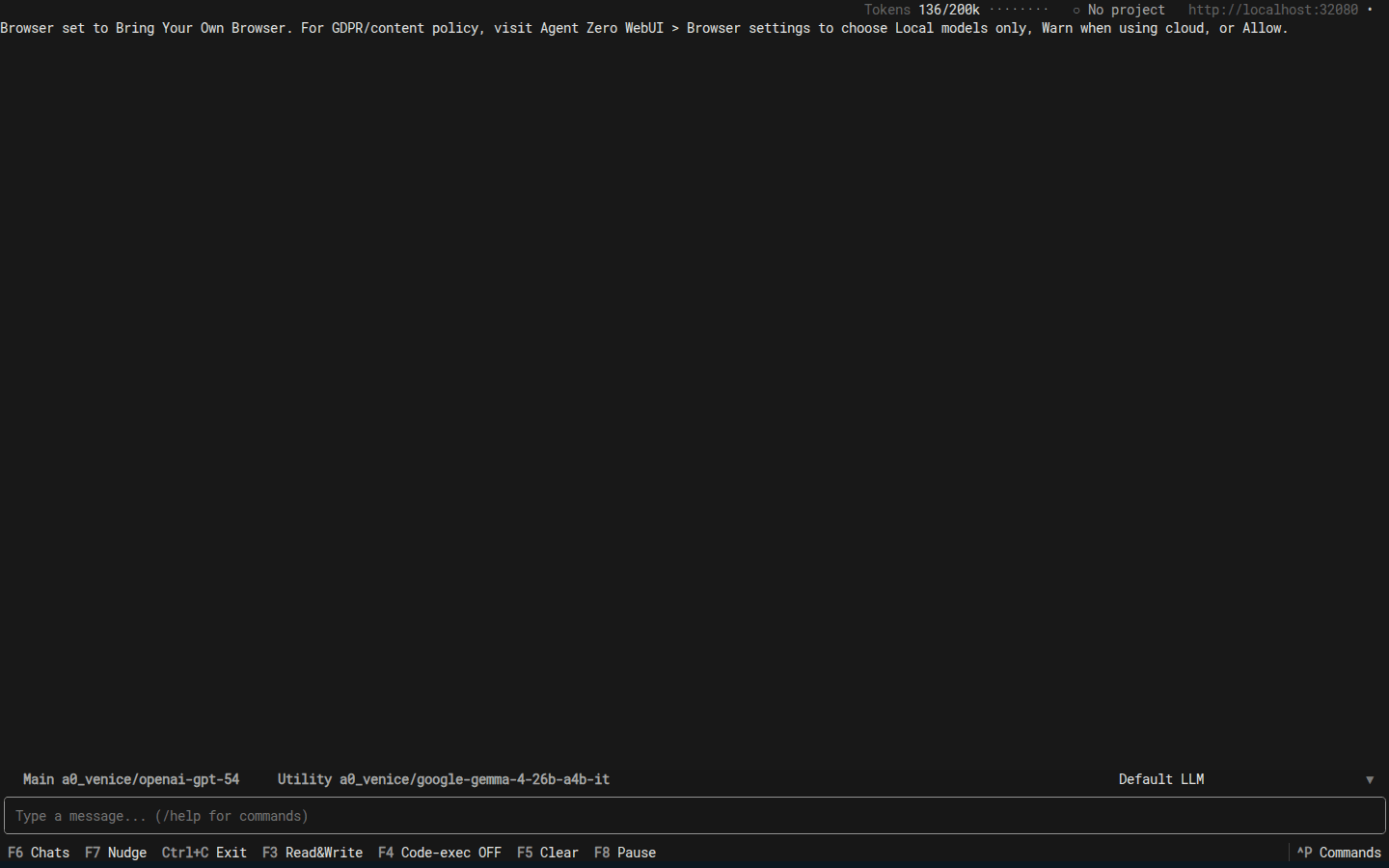
Browser settings show Automatic, advertised debug endpoints, and Custom endpoint. If you only know a debug port such as 127.0.0.1:34535, open http://127.0.0.1:34535/json/version and copy webSocketDebuggerUrl.
/browser privacy reminds you how page text and screenshots are allowed to flow. Visit the Web UI to change the policy to local models only or be warned when using cloud LLMs. Use /browser relaunch when you want to manually open or relaunch the host browser and trigger the browser approval prompt.
Give Setup To Another Agent
If another agent is helping, paste one short setup brief instead of a long checklist.
Set up the A0 CLI connector for Agent Zero on this machine using the a0-setup-cli Skill.Troubleshooting
- Nothing appears locally: enter the Agent Zero web address manually or set
AGENT_ZERO_HOST. - You installed from inside Docker: install A0 CLI on the host machine instead. Agent Zero stays in Docker.
- Function keys do nothing: use
Ctrl+P; some IDE terminals capture function keys. - Connector support is missing: update Agent Zero first.
- Host browser cannot start: keep A0 CLI connected, verify Browser location is Bring Your Own Browser, and run
/browser status.