Documentation
Free up space with A0Cleaner
A0Cleaner clears the caches, old screenshots, and browser leftovers that build up as you use Agent Zero. Automatic cleanup is on by default, with a weekly run on Monday at 09:00 in the task's configured timezone. You can change what it cleans, adjust the schedule, or review a cleanup yourself.
Open the cleaner
Open Plugins → Builtin, search for A0Cleaner, and select Open. You can also choose Config → Open A0Cleaner.
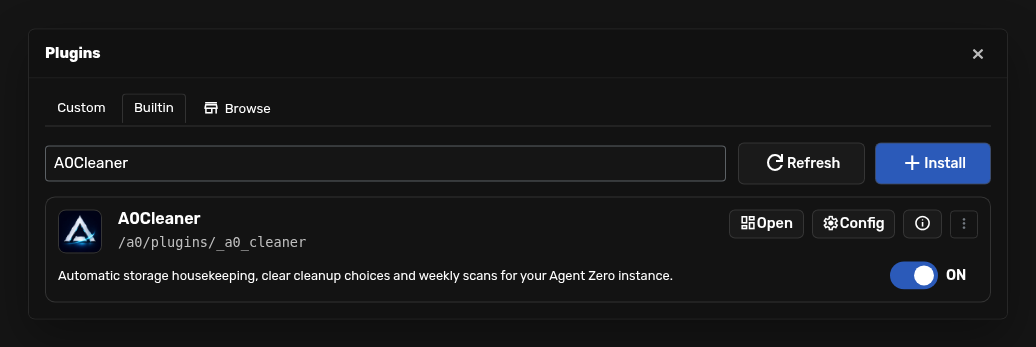
The cleaner scans when you first open it, or when its previous scan is more than an hour old. Select Scan now whenever you want fresh numbers. Scanning does not delete anything.
Ready to clean is the total found across the cleanup areas. The amount beside Review cleanup is just your current selection. The disk meter shows the storage available to your Agent Zero instance.
Choose what runs automatically
The Automatic cleanup switch controls whether scheduled runs delete files. Each area's Auto switch lets you keep that category out of future automatic cleanups. These choices save as you change them.
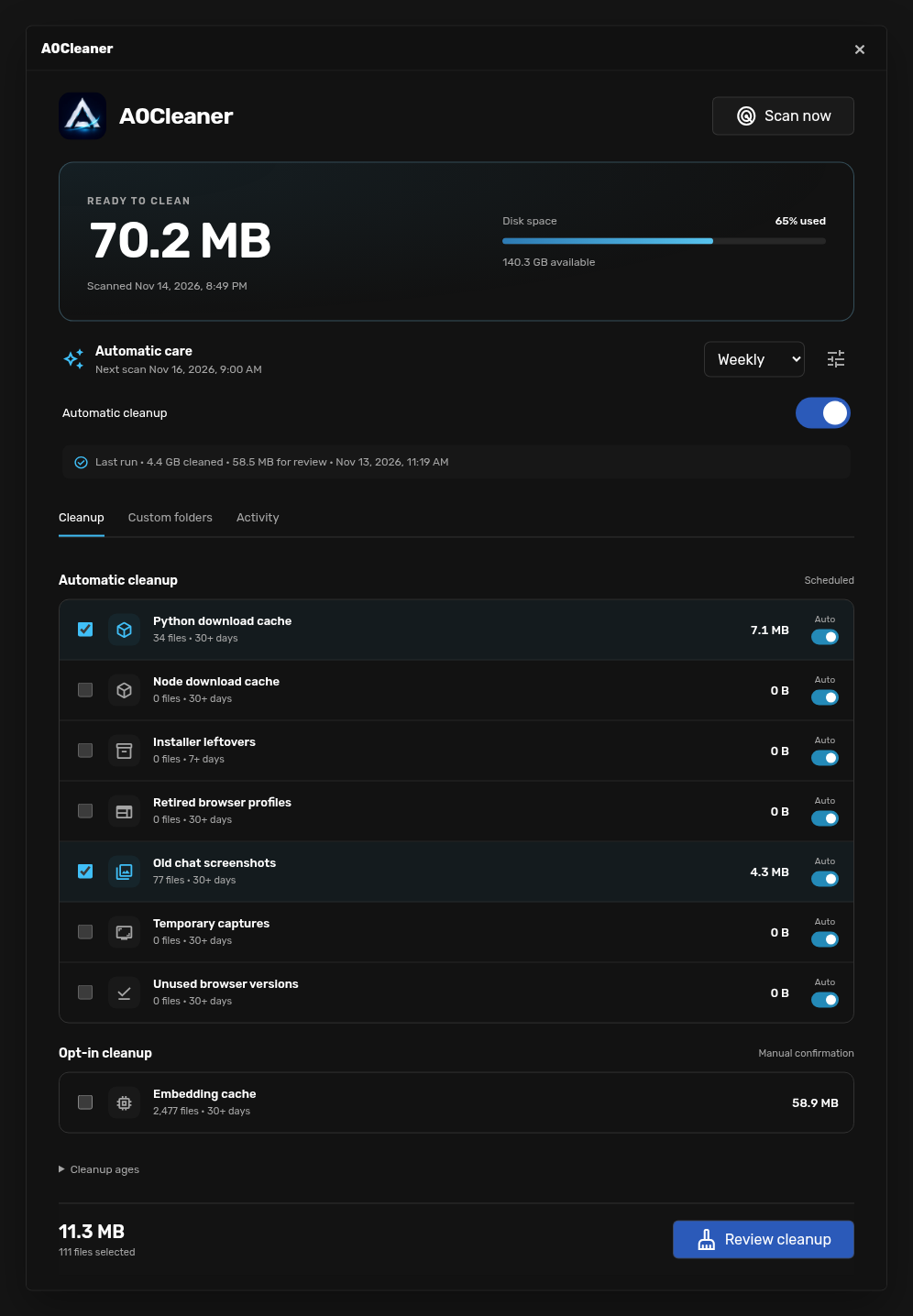
These are the defaults:
| Area | Automatic | Files considered |
|---|---|---|
| Python and Node download caches | On | Unchanged for 30 days. Packages can be downloaded again. |
| Installer leftovers | On | Temporary plugin and skill installation files older than 7 days. |
| Retired browser profiles | On | Profiles unchanged for 30 days. Shared and running profiles are kept. |
| Old chat screenshots | On | Screenshots older than 30 days in chats inactive for at least 30 days. Running and paused chats are kept. |
| Temporary captures | On | Browser and desktop captures older than 30 days. |
| Unused browser versions | On | Old Chromium installations unchanged for 30 days. Required and running versions are kept. |
| Embedding cache | Manual only | Cached embeddings older than 30 days. |
| Custom folders | Manual only | Files matching the age you choose for that folder. |
Clearing a retired browser profile removes its saved sign-ins and tabs. Clearing screenshots removes those old previews. Turn off the corresponding Auto switch if you want to keep them.
Expand Cleanup ages to change the cutoffs for Download caches, Installer leftovers, or Browser & chat files. The last setting also applies to the embedding cache. An age is an eligibility cutoff, not a promise to delete every file: files in use or recently changed are skipped.
Built-in cleanup keeps chat text, uploaded files, installed models, and
applications. It cleans specific locations inside /a0/tmp; it does not sweep
Linux's separate /tmp directory or /a0/usr/uploads. Uploads can still be
needed by saved chats or queued messages. Time Travel manages its own retention.
Understand the notification
After a scheduled run, Agent Zero tells you what happened. If files remain for review, the toast says A0 found … of unused files and offers Clean up. If it also cleaned files automatically, that amount appears underneath.
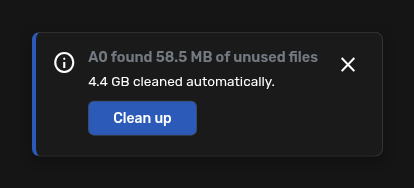
This example uses a saved maintenance result: 4.4 GB had already been cleaned, and 58.5 MB remained for review. Your amounts will depend on your instance.
Clean up opens the cleaner. You still choose the areas and confirm before a manual cleanup deletes anything.
The toast follows the schedule, so it normally appears once a week. It is not triggered by Scan now or by opening the cleaner. Running the A0Cleaner task manually from Tasks can also show it. A review toast stays until you dismiss it with ×; an unread one can reappear after refreshing the page. When a run only cleans files and leaves nothing to review, the success toast closes after about six seconds. If it finds and cleans nothing, there is no toast.
Change the schedule
Under Automatic care, choose Daily, Weekly, Monthly, or Off. The presets run at 09:00: weekly on Monday, monthly on the first day of the month.
Select the sliders button, Schedule details, to open the A0Cleaner task. Use Edit to change its time or cron schedule. For a different timezone, ask the agent to update the A0Cleaner task. You can also find it in Scheduled Tasks.
- To keep scheduled scans and notifications but decide on every deletion, turn Automatic cleanup off and leave the schedule on.
- To stop scheduled scans as well, set the schedule to Off. You can still open the cleaner and scan manually.
If the container is off at the scheduled time, an enabled, idle task catches up once after Agent Zero starts again. Several missed runs become one cleanup, then the normal schedule resumes. Disabled tasks stay paused; failed or interrupted runs need attention in Tasks.
Review and clean files yourself
- Select Scan now for an up-to-date list.
- Use the checkboxes on the left to select only the areas you want to clean this time. Automatic areas with eligible files may already be selected. These boxes do not change the Auto switches on the right.
- Select Review cleanup. Read the effect of each selected area and expand the file count to inspect the listed paths.
- Select Clean up to permanently remove the selected files, or Cancel to leave them alone.
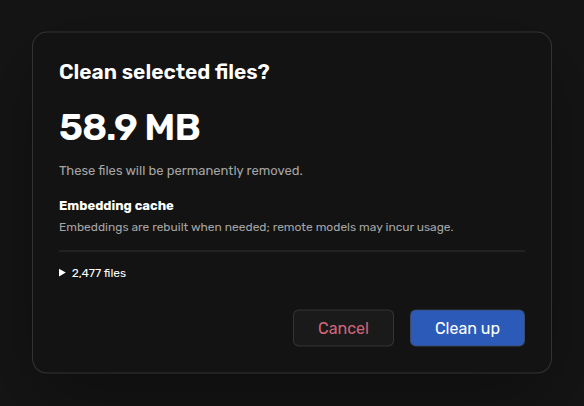
The embedding cache always needs your selection and confirmation. Embeddings will be rebuilt when needed, which can use model credits if you use a remote embedding provider.
Add a custom folder
Use Custom folders for a scratch folder you deliberately want to clear.
Choose an existing subfolder inside A0's workdir, a project, downloads, uploads,
or /a0/tmp. Use the container path, such as /a0/usr/workdir/cleanup-demo,
rather than a path on your host computer.
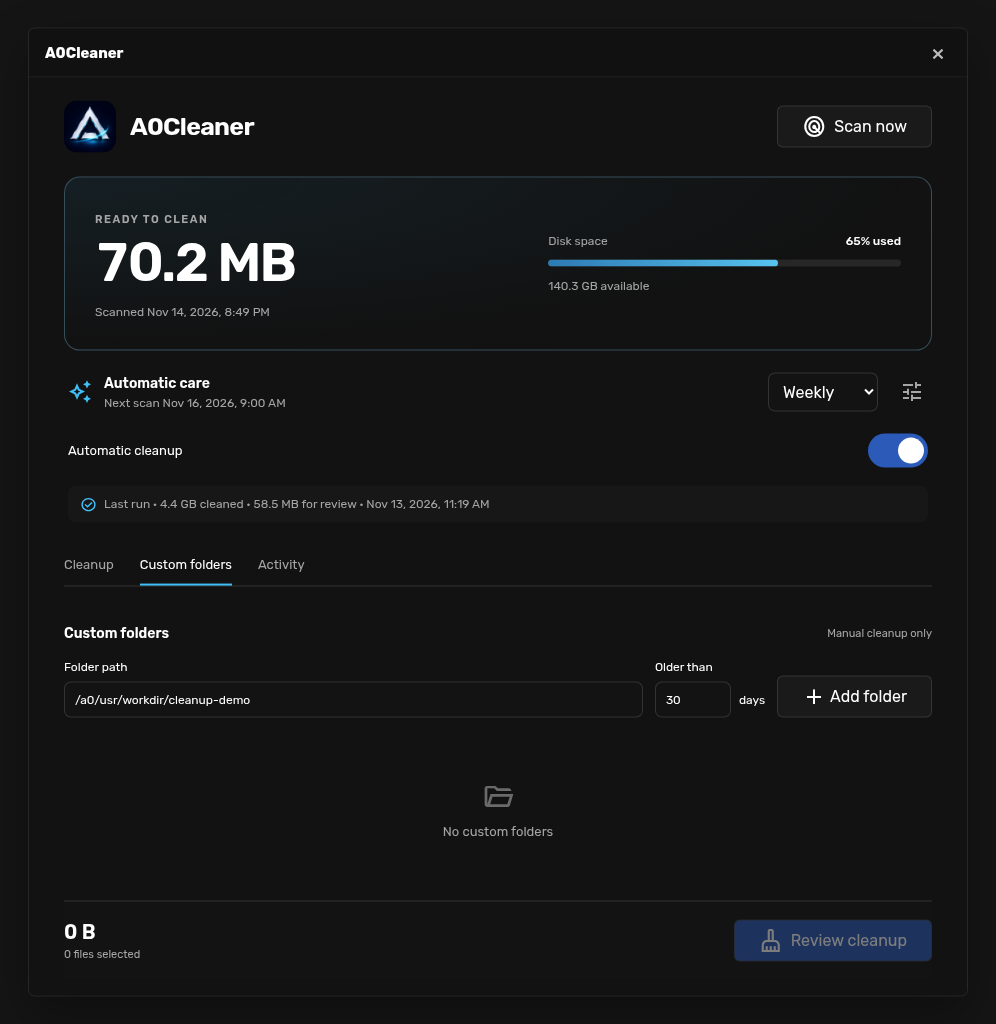
- Enter the Folder path.
- Set Older than in days. For example,
30keeps recently changed files.0includes all eligible files regardless of age. - Select Add folder. The cleaner scans it and adds a row with its size.
- Select that folder's checkbox, check your total selection, and use Review cleanup.
Custom folders are always manual, even when automatic cleanup is on. The × beside a folder removes its rule, not its contents. Project roots, protected configuration, Git history, and managed cleanup locations cannot be added as custom targets.
Choose folders whose contents you can discard. Adding an uploads subfolder does not check whether a chat still references its files.
Check results
Last run keeps the latest scheduled result visible, even after you run a fresh scan. Open Activity for the cleanup history, including automatic or manual runs, space cleaned, file counts, and skipped files.
| What you see | What to do |
|---|---|
| No files found | Check the ages and scan again after more use. A small result is normal after a recent cleanup. |
| An area is in use or could not be inspected | Let the related work finish, then scan again. The cleaner leaves unverified files alone. |
| Some files were skipped | Files may have changed or become active since the scan. Scan again before reviewing another cleanup. |
| A preview is no longer valid | Run Scan now and review the new selection. |
| Disk space changed less than the cleanup amount | Sizes are estimates. Docker's image layers and host storage can make reclaimed space differ from the reported file total. |
For the implementation reference, see the A0Cleaner README.