Documentation
Desktop
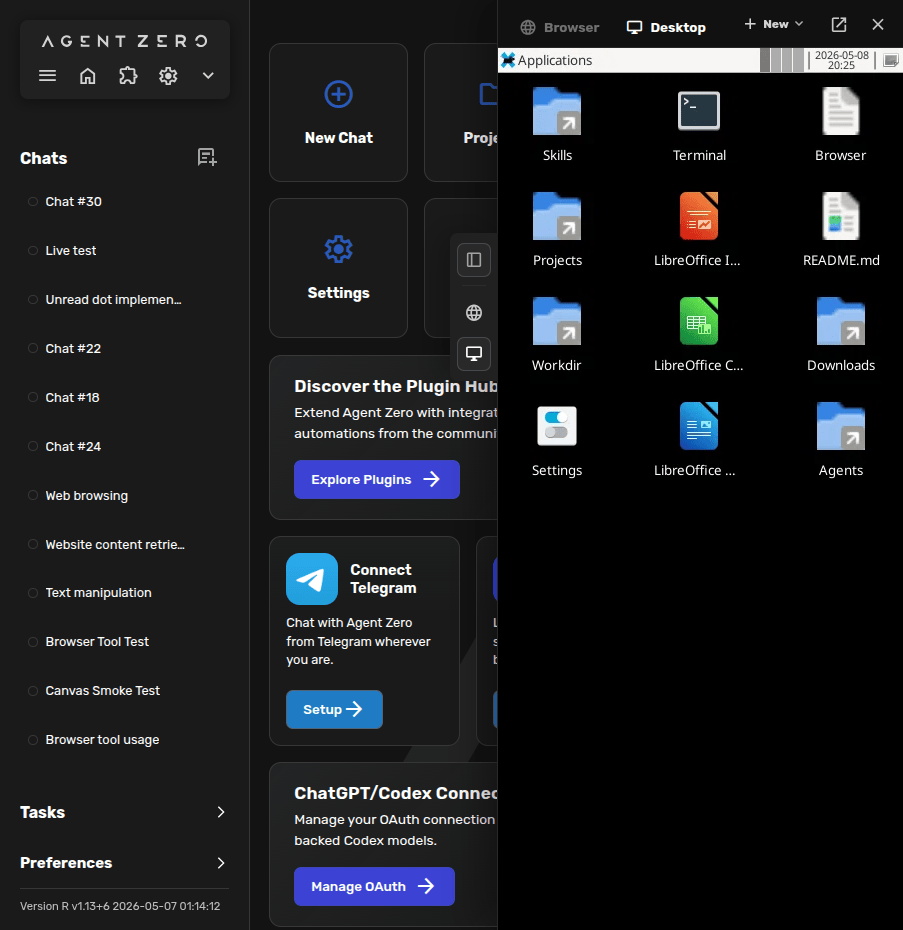
Agent Zero has its own Linux desktop inside the right-side Canvas. Open it when work is visual: GUI apps, file inspection, document layout, or LibreOffice Cowork.
What The Desktop Is For
The Desktop is a live Linux workspace. You can use it yourself, and Agent Zero can observe the screen, act through the GUI, and verify what changed.
- Open the graphical file manager for Workdir, Projects, Skills, Agents, or Downloads.
- Inspect or polish LibreOffice Writer, Calc, and Impress files.
- Cowork with the agent in documents, spreadsheets, and presentations.
Start From The Canvas
Click the Desktop icon on the Canvas rail, wait for the desktop to start, then click Open as window if you want more room.
Create Or Open Files
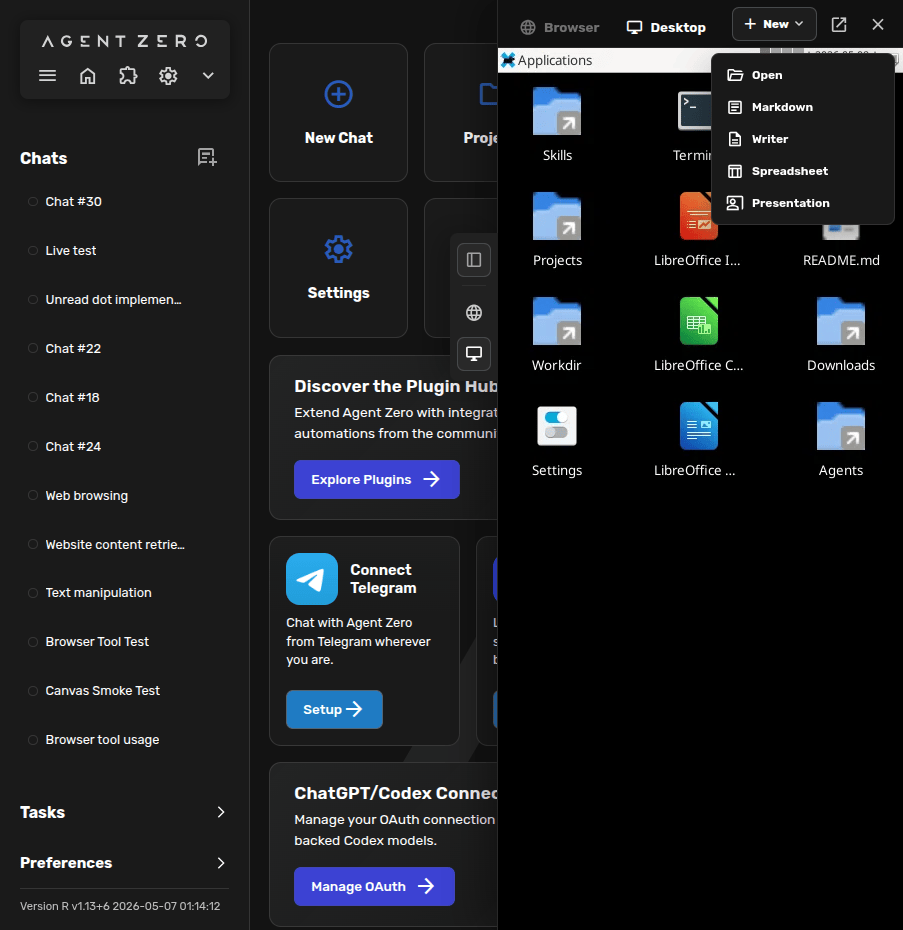
Use the Desktop toolbar's New menu to create Markdown, Writer, Spreadsheet, or Presentation files. Use Open for files already in the Agent Zero workspace.
Cowork In LibreOffice
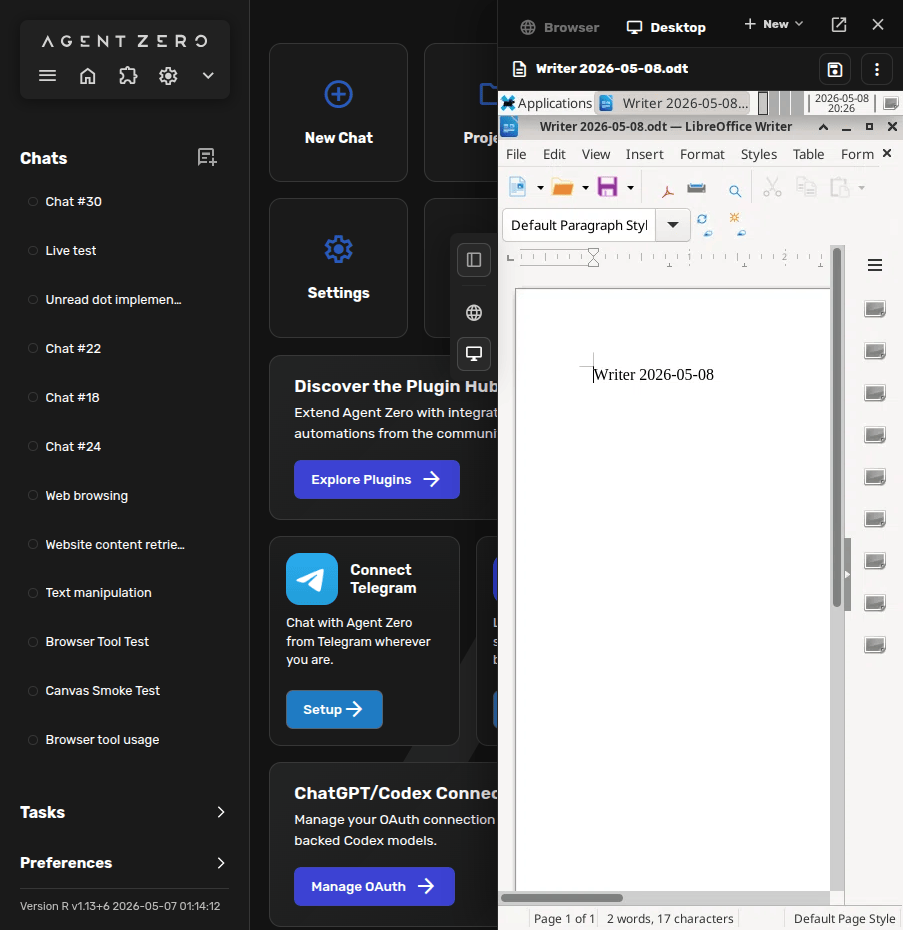
LibreOffice Writer, Calc, and Impress run inside the Desktop. You can type directly, save, rename, and close files from the Canvas header while Agent Zero works with the same document.
Practical Tips
- Use Open as window for large Writer, Calc, or Impress sessions.
- Save before closing if you edited by hand.
- Use the Browser surface for websites and the Desktop surface for Linux apps.
- If a GUI app feels stuck, ask Agent Zero to verify the Desktop state before continuing.