Integration
MCP & A2A Integration
Extend Agent Zero with external MCP servers for additional tools and enable Agent-to-Agent communication for distributed workflows.
MCP Server Setup
Agent Zero can connect to external MCP (Model Context Protocol) servers to extend its capabilities with additional tools.
What are MCP Servers?
MCP servers are external tools that Agent Zero can use to perform specialized tasks. Popular examples include:
- Browser automation - Chrome DevTools, Playwright
- Workflow automation - n8n integration
- Email operations - Gmail management
- Database access - SQLite, PostgreSQL
- File operations - Advanced file system tools
- API integrations - Third-party service connectors
📝 Note: This guide covers connecting to external MCP servers as a client. For exposing Agent Zero as an MCP server, see the advanced connectivity documentation.
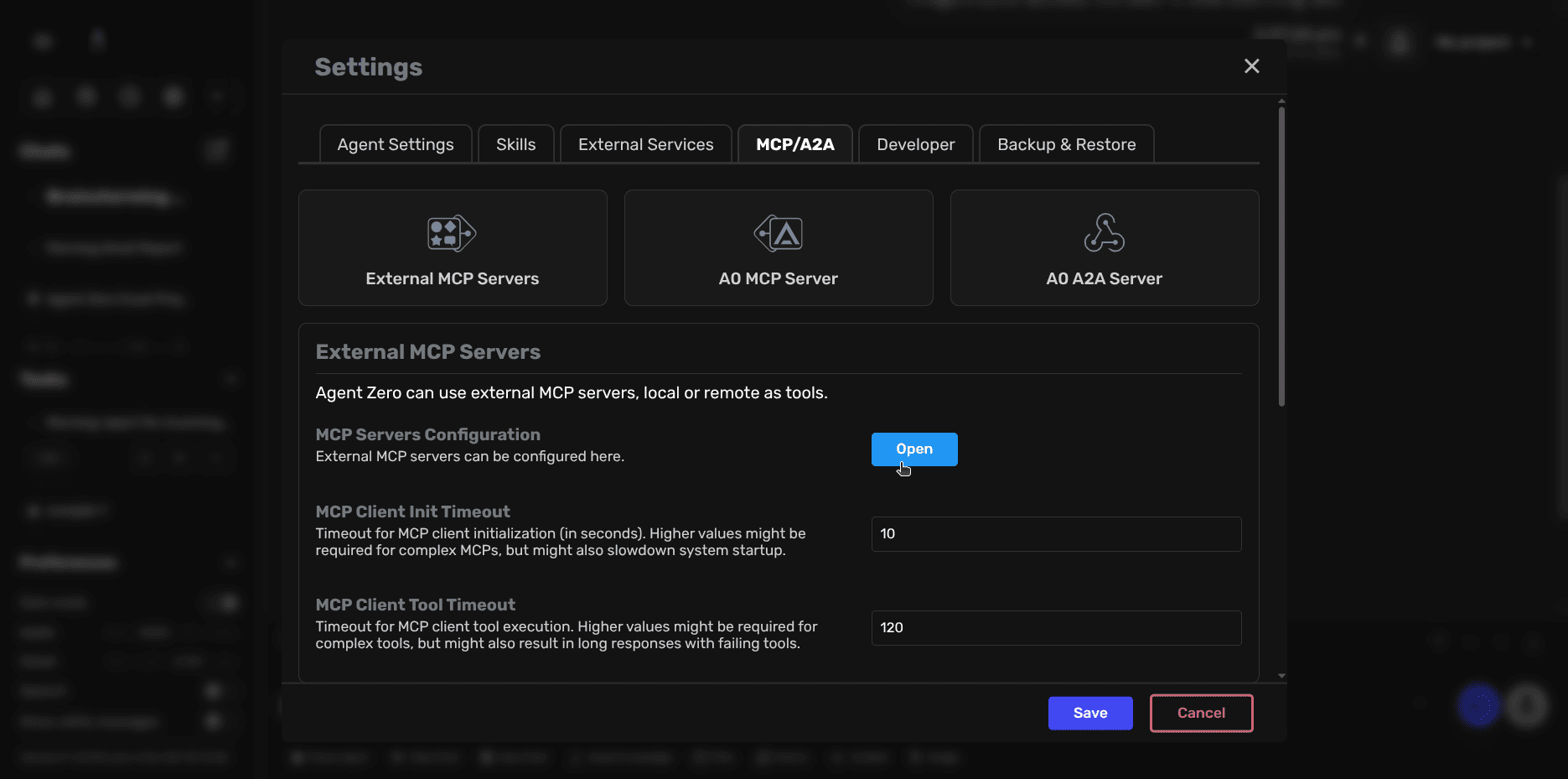
Step 1: Open MCP Configuration
- Click Settings in the sidebar
- Navigate to the MCP/A2A tab
- Click on External MCP Servers
- Click the Open button to access the configuration editor
Step 2: Add Your MCP Server
In the JSON editor, add your MCP server configuration. Here's a simple example:
{
  "mcpServers": {
    "chrome-devtools": {
      "command": "npx",
      "args": ["-y", "chrome-devtools-mcp@latest"]
    }
  }
}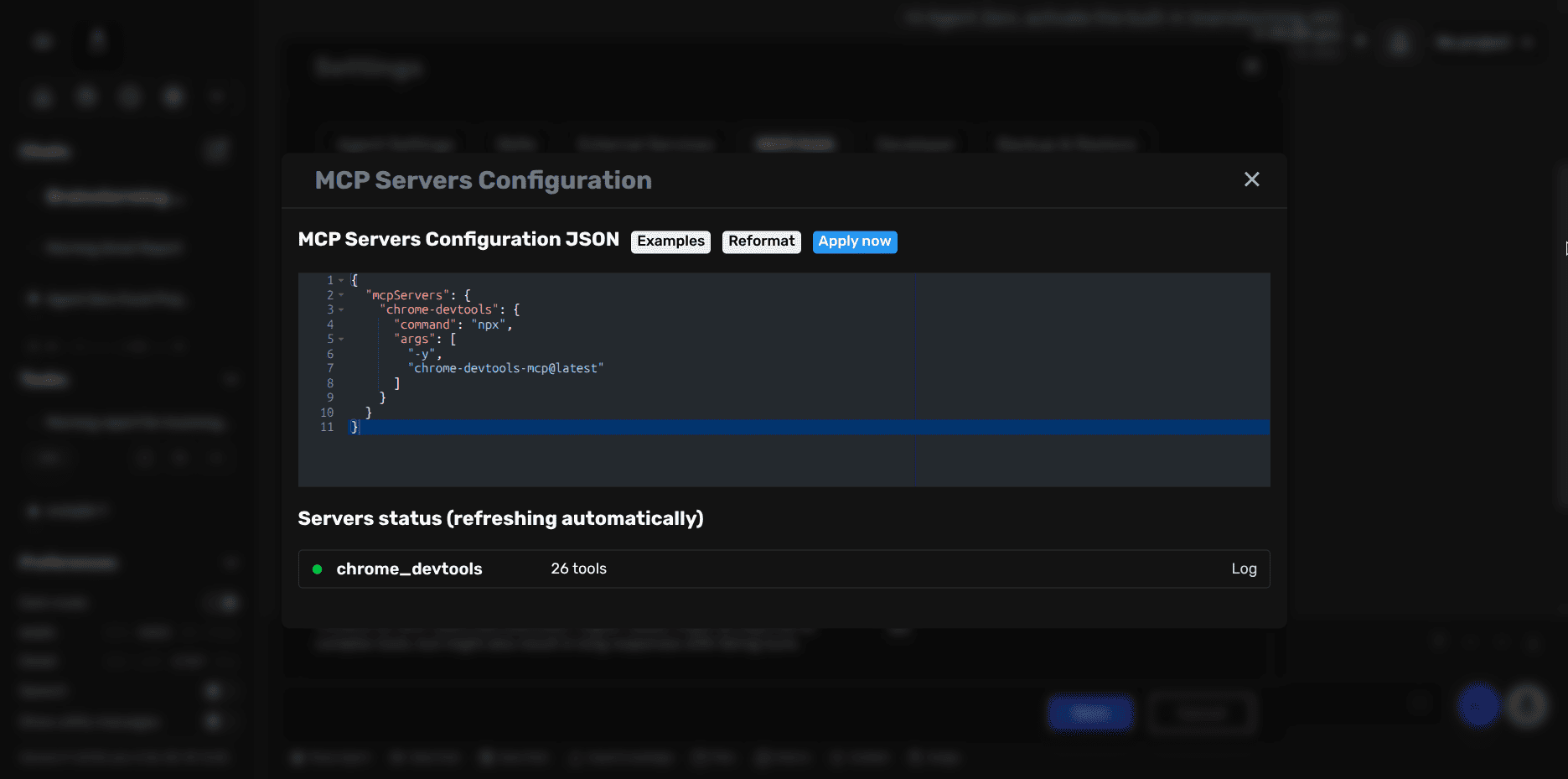
Step 3: Apply and Verify
- Click Apply now to save your configuration
- The server status will appear below, showing:
- Server name (e.g.,
chrome_devtools) - Number of available tools
- Connection status (green indicator = connected)
- Server name (e.g.,
💡 Tip: The first time you run an npx-based MCP server, it may take a few moments to download and initialize.
Common MCP Server Examples
Local Command-Based Server
{
  "mcpServers": {
    "sqlite": {
      "command": "uvx",
      "args": ["mcp-server-sqlite", "--db-path", "/root/db.sqlite"]
    }
  }
}
Remote HTTP Server
{
  "mcpServers": {
    "external-api": {
      "url": "https://api.example.com/mcp",
      "headers": {
        "Authorization": "Bearer YOUR_API_KEY"
      }
    }
  }
}
Multiple Servers Configuration
{
  "mcpServers": {
    "browser": {
      "command": "npx",
      "args": ["-y", "chrome-devtools-mcp@latest"]
    },
    "database": {
      "command": "uvx",
      "args": ["mcp-server-sqlite", "--db-path", "/data/app.db"]
    },
    "external-api": {
      "url": "https://api.example.com/mcp",
      "headers": {
        "Authorization": "Bearer token123"
      }
    }
  }
}
Docker Networking
If Agent Zero runs in Docker and your MCP server runs on the host:
- macOS/Windows: Use
host.docker.internalin URLs{ "url": "http://host.docker.internal:PORT/endpoint" } - Linux: Run the MCP server in the same Docker network and use the container name
{
  "url": "http://container_name:PORT/endpoint"
}
Using MCP Tools
Once connected, MCP tools become available to Agent Zero automatically. Tools are named with the server prefix:
Example:
- Server name:
chrome-devtools - Tool becomes:
chrome_devtools.navigate_to_url
Simply ask Agent Zero to perform tasks, and it will use the appropriate MCP tools when needed.
Recommended MCP Servers
Community-tested and reliable MCP servers:
- Chrome DevTools MCP - Direct Chrome control
- Playwright MCP - Cross-browser automation
- n8n MCP - Workflow automation
- Gmail MCP - Email management
- VSCode MCP - IDE workflows
💡 Tip: For browser automation tasks, MCP-based browser tools are more reliable than the built-in browser agent.
A2A Server Setup
Agent Zero can communicate with other Agent Zero instances using the A2A (Agent-to-Agent) protocol based on FastA2A.
What is A2A?
A2A enables direct communication between multiple Agent Zero instances. This allows:
- Distributed workflows - Delegate tasks to specialized agent instances
- Context isolation - Maintain separate workspaces for different agents
- Long-running collaboration - Persistent agent-to-agent conversations
- Project-specific delegation - Route work to agents with specific project contexts
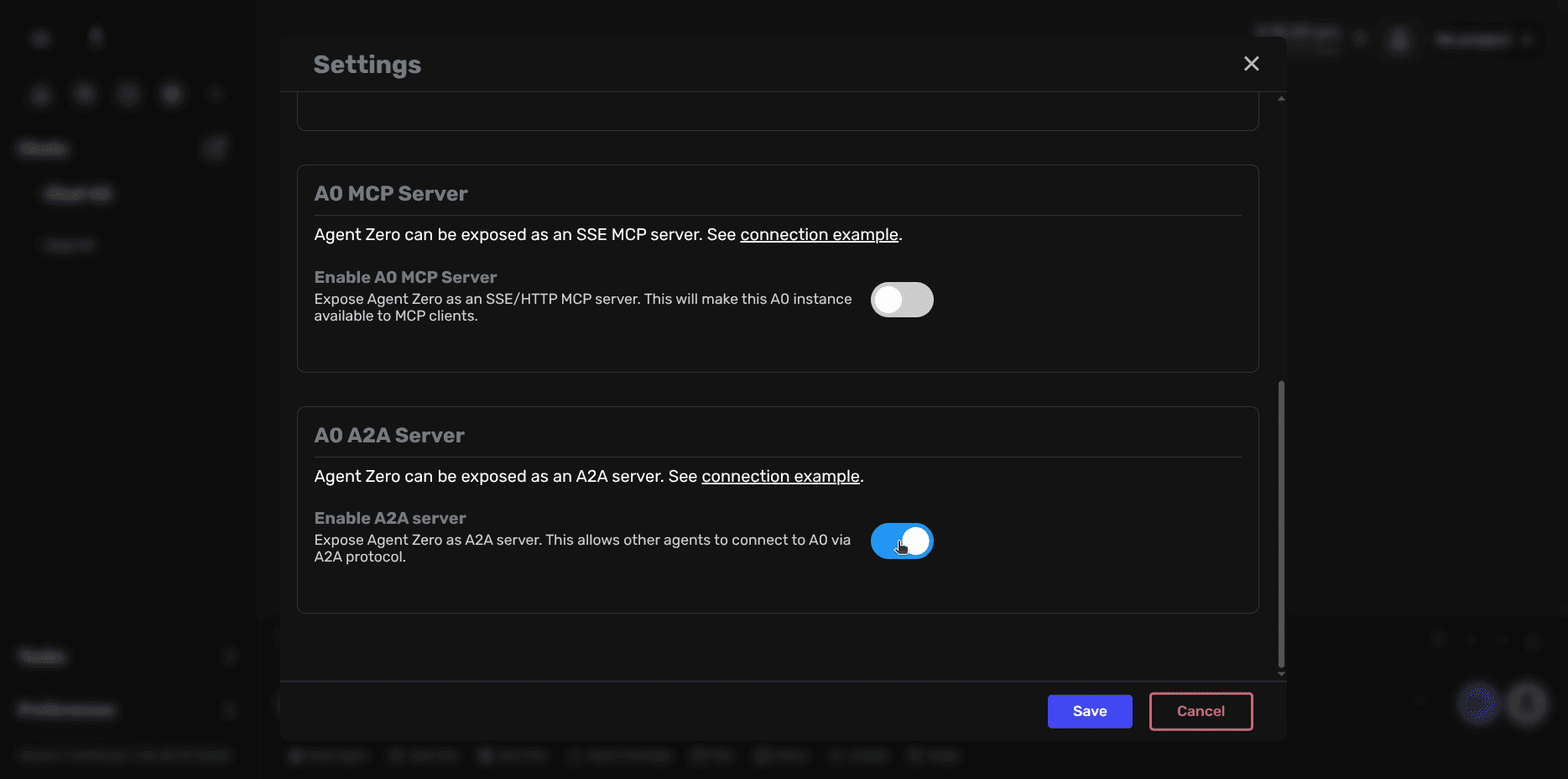
Step 1: Enable A2A Server
- Click Settings in the sidebar
- Navigate to the MCP/A2A tab
- Scroll to the A0 A2A Server section
- Toggle Enable A2A server to ON
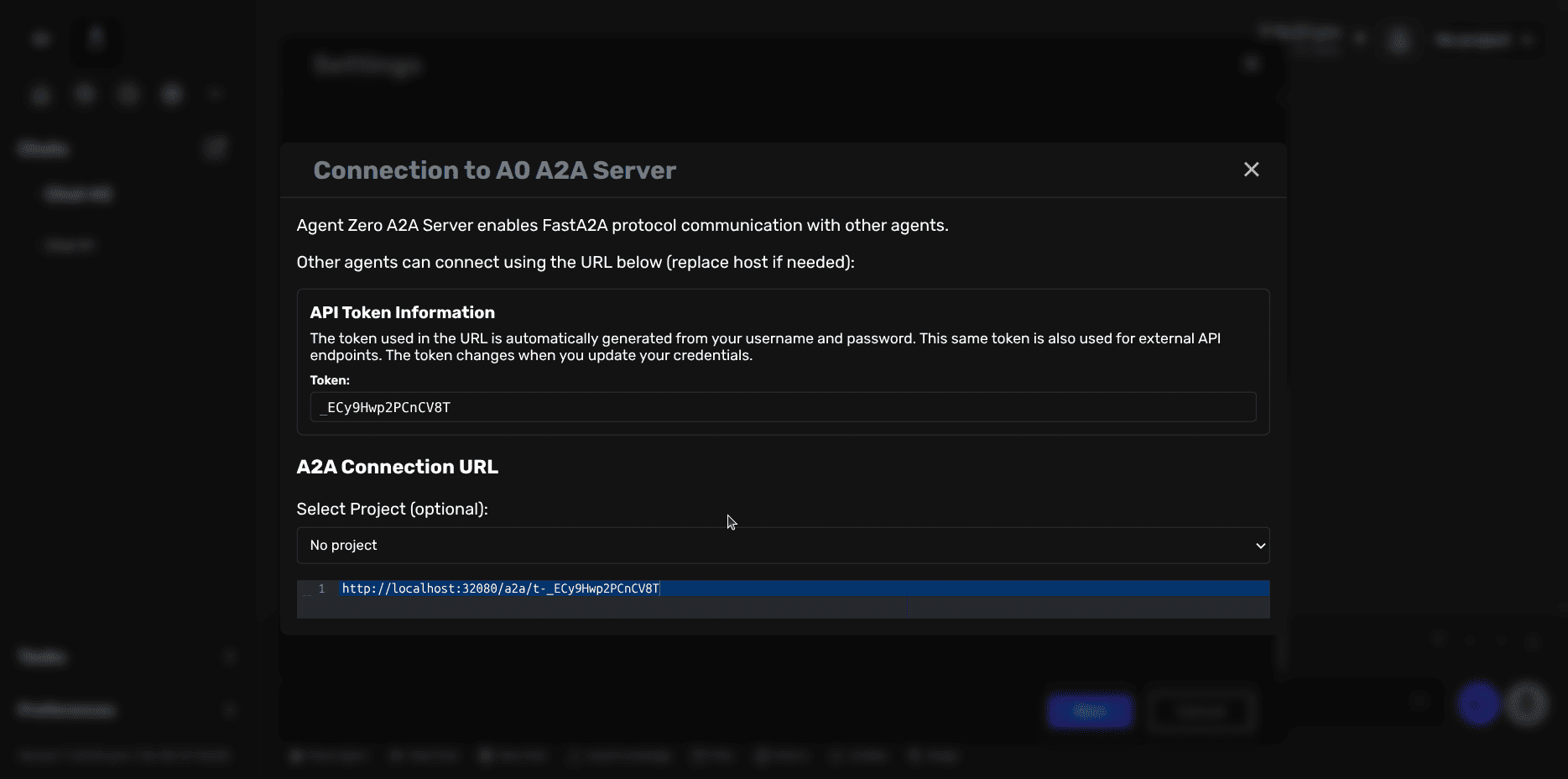
Step 2: Get Connection URL
- Click on connection example to view your A2A connection details
- The dialog displays:
- API Token - Automatically generated from your username and password
- A2A Connection URL - The full URL other agents will use to connect
- Optional Project selector - To create project-specific connection URLs
Step 3: Save Configuration
- Click Save to apply your settings
- The A2A server is now active and ready to accept connections
⚠️ Important: The API token changes when you update your Agent Zero credentials. Existing connections will need to be reconfigured with the new token.
Connection URL Format
Basic A2A Connection
http://YOUR_HOST:PORT/a2a/t-YOUR_API_TOKENWith Project Context
To connect with a specific project active:
http://YOUR_HOST:PORT/a2a/t-YOUR_API_TOKEN/p-PROJECT_NAMEWhen a project is specified, all A2A conversations run in that project's context with access to project-specific resources and knowledge.
Example Use Cases
1. Local Development Setup
Two Agent Zero instances on the same machine:
Instance 1: http://localhost:8080/a2a/t-abc123xyz
Instance 2: http://localhost:8081/a2a/t-def456uvw
2. Remote Agent Collaboration
Connect to a remote Agent Zero instance:
http://agent.example.com:8080/a2a/t-remote-token3. Project-Specific Delegation
Main agent delegates frontend work to specialized agent:
http://localhost:8081/a2a/t-frontend-token/p-webapp-uiA2A vs MCP Comparison
| Feature | A2A | MCP |
|---|---|---|
| Purpose | Agent-to-agent chat delegation | Tool/function access |
| Use Case | Long-running conversations | Specific tool calls |
| Context | Full chat context | Function parameters only |
| Best For | Workflow delegation | Tool integration |
💡 Tip: Use A2A when you need another agent's reasoning and conversation capabilities. Use MCP when you just need access to specific tools or functions.
Security Considerations
- Token Protection: Keep your API tokens secure - they provide full access to your Agent Zero instance
- Network Access: Consider using firewalls or reverse proxies to restrict A2A endpoint access
- HTTPS: For production deployments, use HTTPS to encrypt A2A communication
- Credential Rotation: Changing your password will invalidate all existing A2A connection URLs
Testing Your Connection
You can test A2A connectivity using curl:
curl -X POST http://localhost:8080/a2a/t-YOUR_TOKEN \
  -H "Content-Type: application/json" \
  -d '{"message": "Hello from another agent"}'
Troubleshooting
MCP Issues
Server Not Connecting
- Verify the A2A server is enabled in Settings
- Check that the Agent Zero instance is running
- Confirm the port is accessible (check firewall rules)
- Wrong URL or port configuration
- Missing authentication headers for remote servers
Tools Not Appearing
- Confirm server shows as connected (green status)
- Check server exposes tools (count shown in UI)
- Verify tool names match server documentation
- For
npx/uvxservers, first run downloads packages (may take time)
A2A Issues
Connection Refused
- Verify the A2A server is enabled in Settings
- Check that the Agent Zero instance is running
- Confirm the port is accessible
Invalid Token
- Token may have changed due to credential updates
- Generate a new connection URL from Settings → MCP/A2A
- Update the connecting agent's configuration
Project Not Found
- Verify the project name in the URL matches exactly
- Check that the project exists in the target instance
- Project names are case-sensitive
Need Help?
Questions about MCP or A2A integration? Reach out to the community!