Documentation
First-Run Onboarding
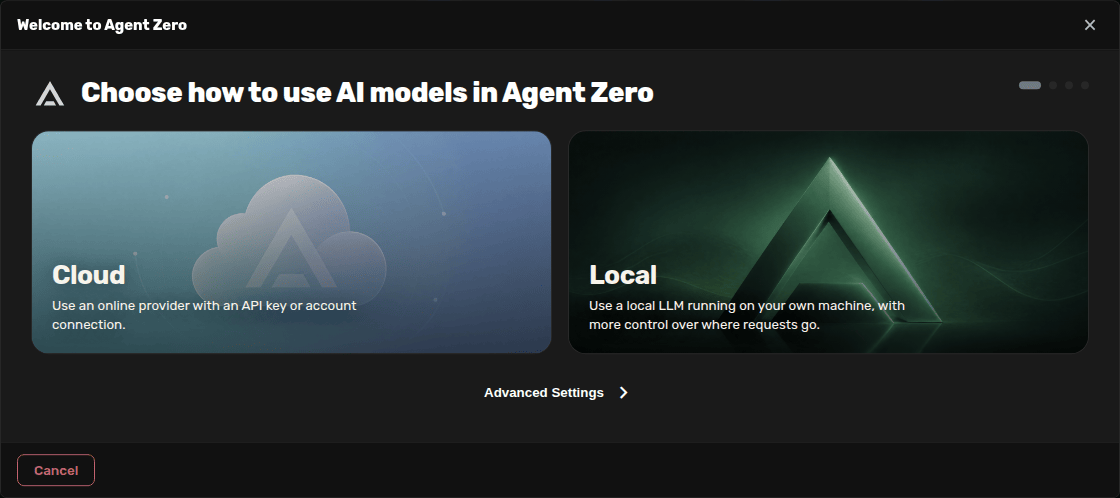
Use onboarding the first time you start Agent Zero. The wizard helps you choose Cloud, AI account, or Local access, then pick the main and utility models.
Open Onboarding
Open the Web UI. The welcome screen can show account shortcuts, and the message composer is ready immediately.
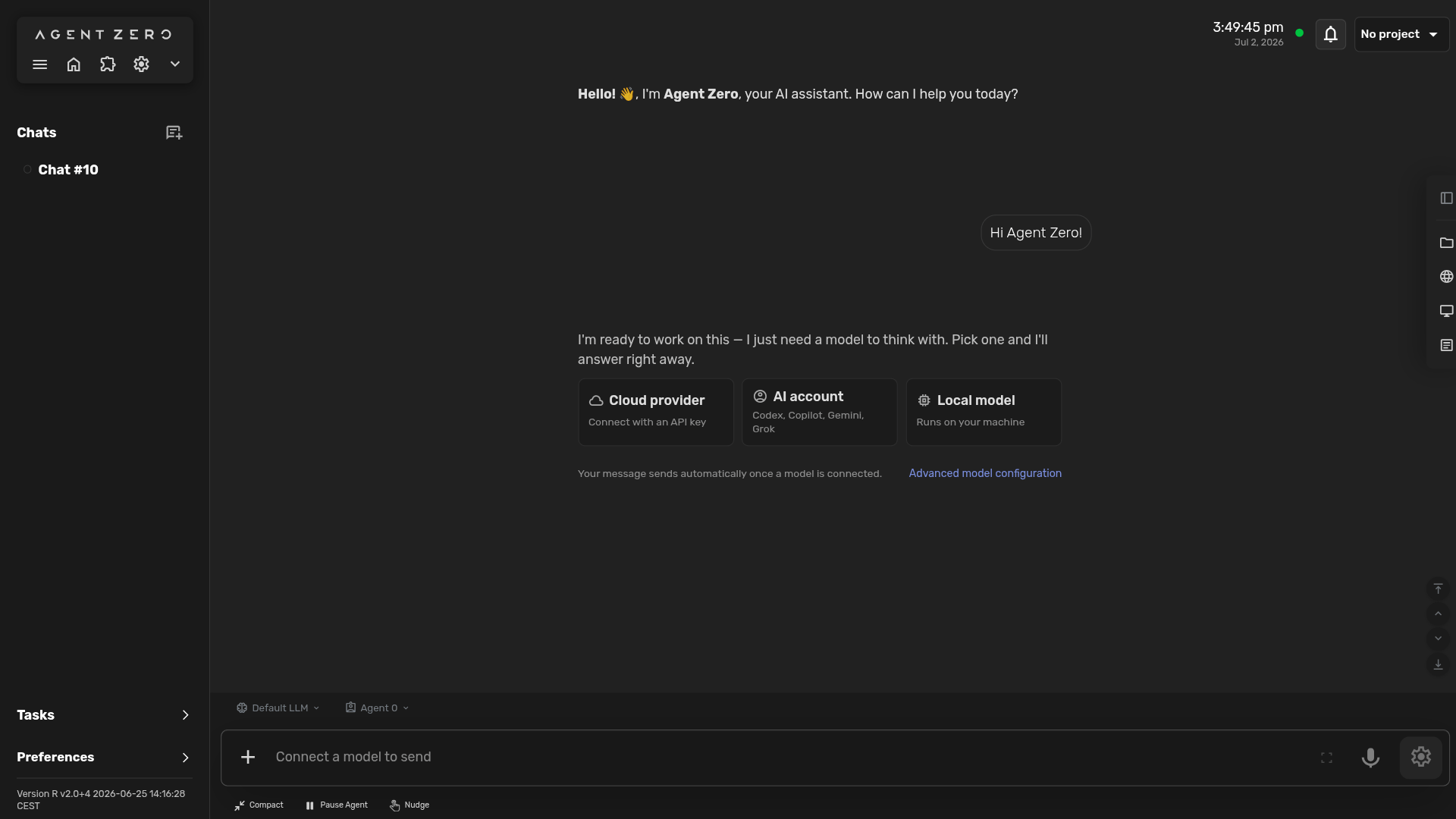
If you send a message before models are configured, Agent Zero creates the chat, holds the message, and shows the model gate inside the conversation.
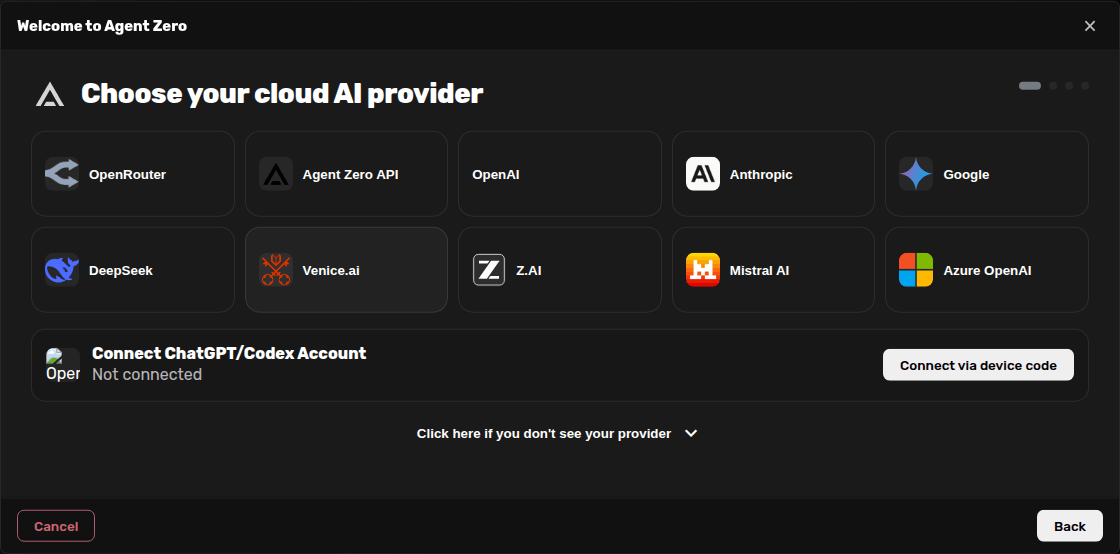
Pick A Provider Path
Choose Cloud when you want to paste an API key for OpenRouter, OpenAI, Anthropic, Google, Venice, or another hosted provider.
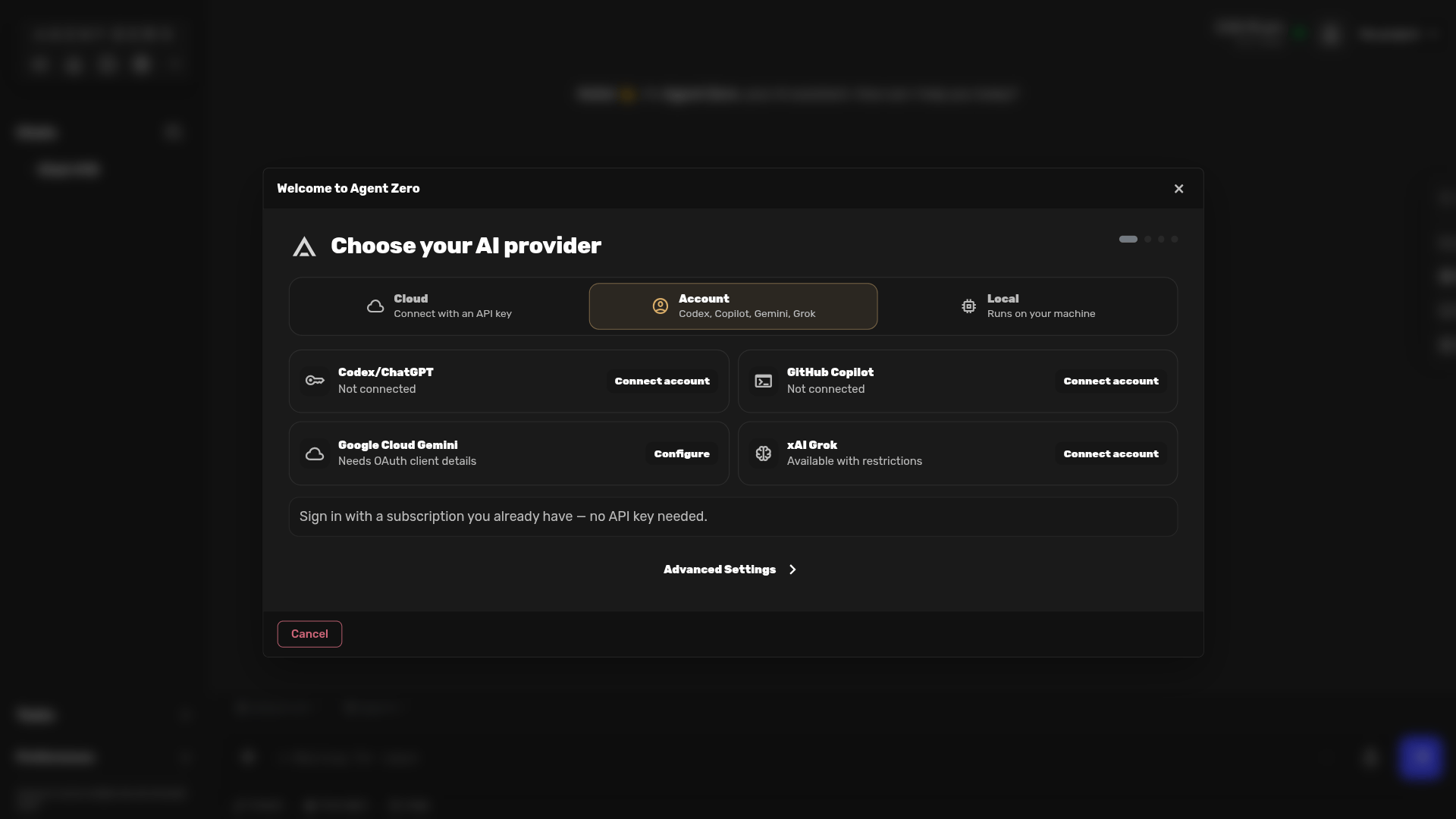
Choose Account when you want to sign in with Codex/ChatGPT, GitHub Copilot, Google Cloud Gemini, or xAI Grok instead of pasting a provider key.
Add The Key And Main Model
For API-key providers, choose the main model and paste the provider key. The screenshot uses a masked demo key.
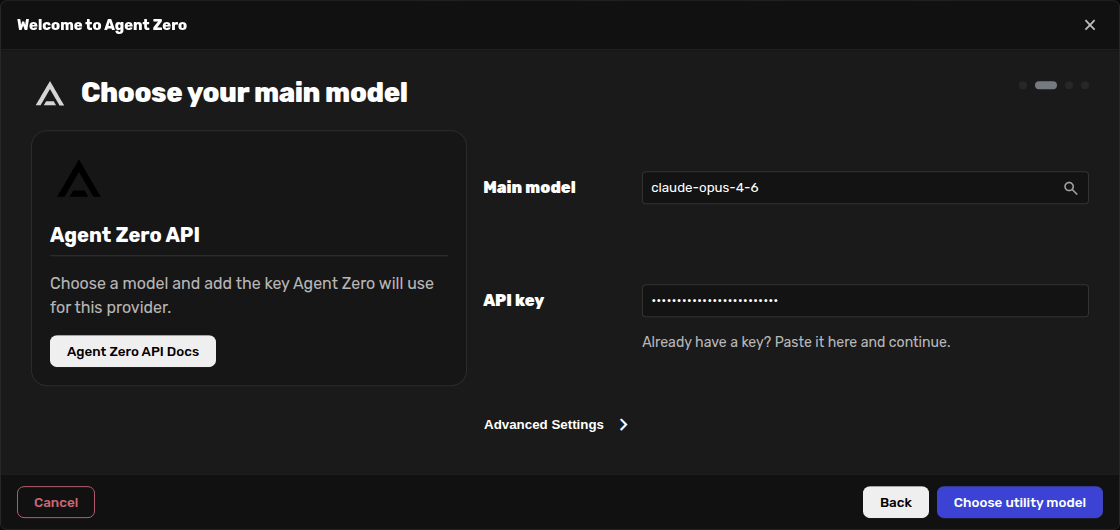
After the model is selected, click Choose utility model.
Use A Local Model App
Choose Local when you want to connect to Ollama, LM Studio, oMLX, llama.cpp, vLLM, or another model server running on your machine.
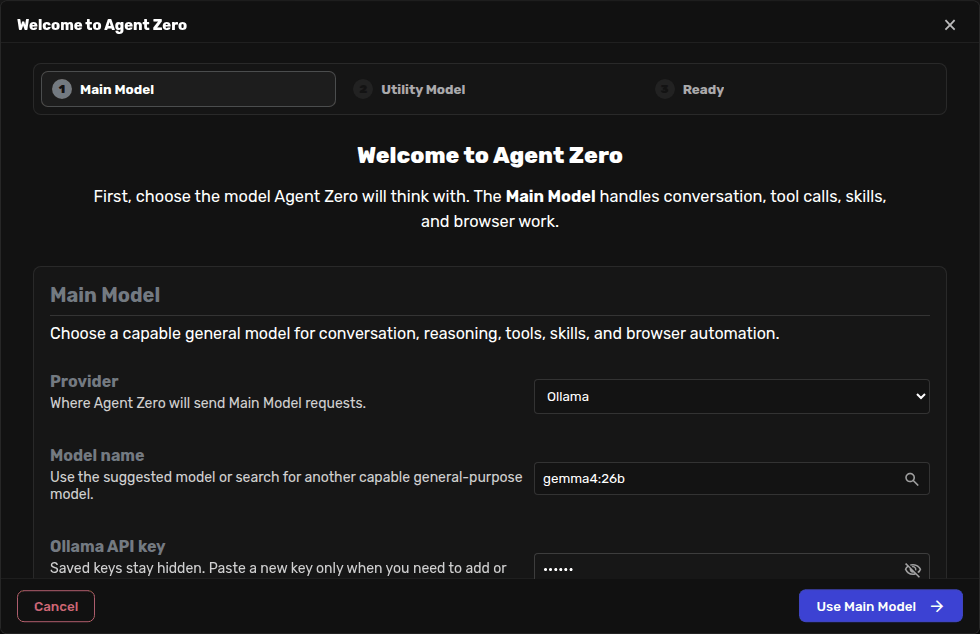
Best to know: start the local model app before onboarding. Use the exact model name from that app when Agent Zero asks for the model.
Choose The Utility Model
The utility model handles quick internal tasks such as summaries, naming, and memory. A small, fast, cheap model usually works best here. The wizard may prefill a utility provider and model, but it remains an explicit choice.
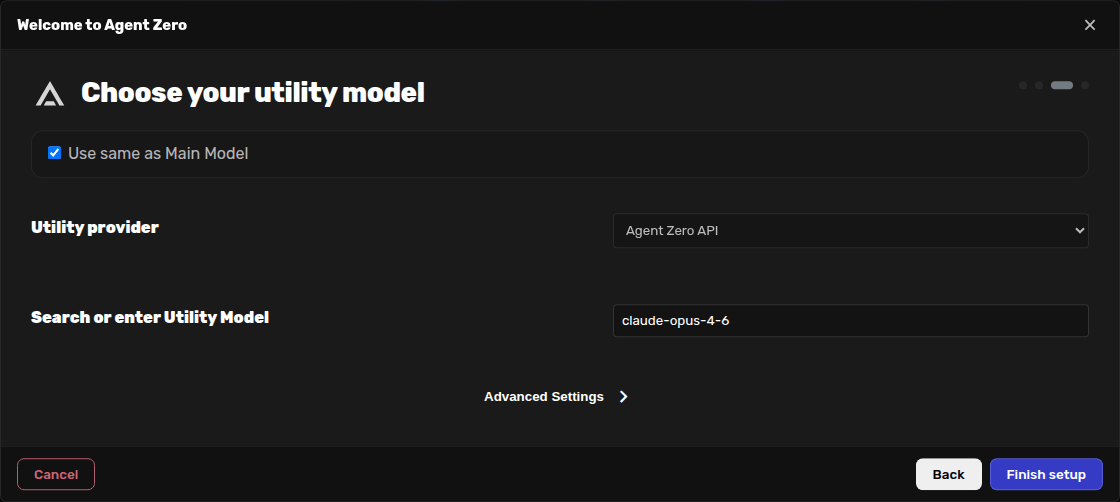
Start Chatting
The ready screen confirms that model setup is done. Optional setup cards may appear for integrations such as Telegram, Email, WhatsApp, or plugins. Click Start Chatting to create a chat.
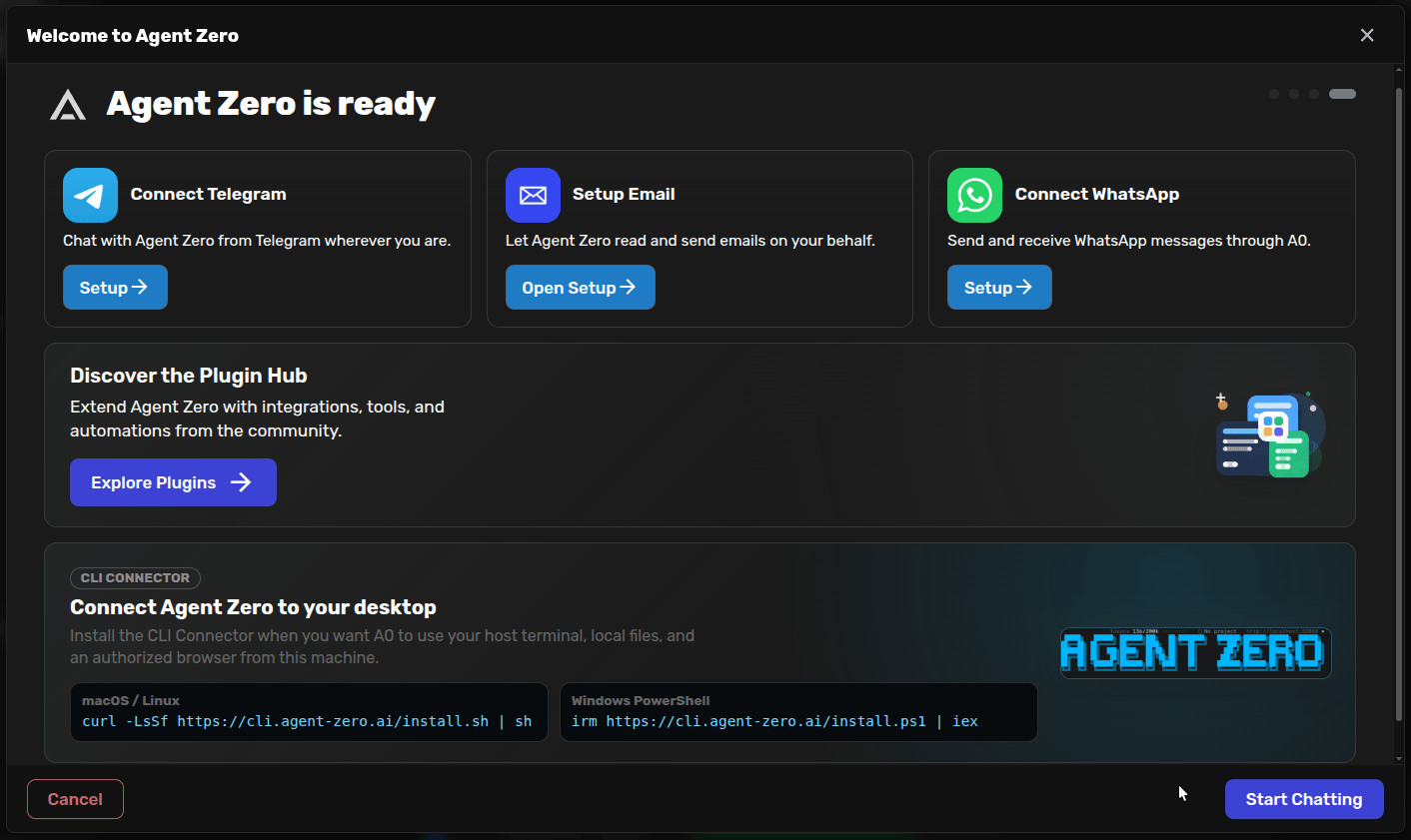
Important: do not reuse fake keys shown in screenshots. Paste your own provider key, and do not share screenshots that reveal real keys or private account details.