User Guides
Working with Projects
Create isolated workspaces with dedicated context, instructions, memory, and secrets for organized multi-client or multi-domain workflows.
What Are Projects?
Projects are one of Agent Zero's most powerful features for organizing your work. They create isolated workspaces with dedicated context, instructions, memory, and secrets - preventing context bleed between unrelated tasks or clients.
A project in Agent Zero includes:
- Dedicated folder structure under
/a0/usr/projects/<project_name>/ - Custom instructions automatically injected into the agent's system prompt
- Isolated or shared memory to prevent context pollution
- Project-specific secrets and variables for secure credential management
- Custom agent configurations including subagent settings
- Knowledge base integration with project-scoped documents
- Git repository integration for version-controlled codebases
- File structure injection for automatic codebase awareness
💡 Think of it: Projects are separate "personas" or "modes" for your agent - each with its own context, memory, and capabilities.
Creating Your First Project
Access Methods
Method 1: Dashboard Access
- Open the Dashboard from the sidebar
- Click the Projects button
- The Projects modal will open
Method 2: Quick Access
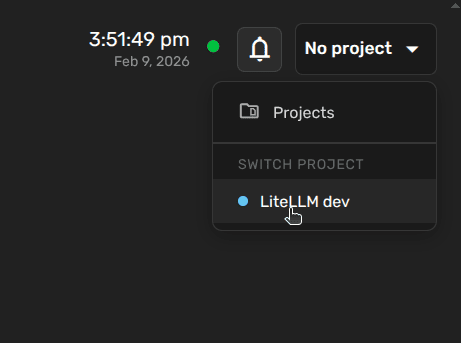
- Look at the top-right corner where it shows "No project"
- Click on it to open the project dropdown
- Click "Projects" to open the modal
Creating an Empty Project
Once in the Projects modal:
- Click "Create project" button
- You'll see the project creation wizard
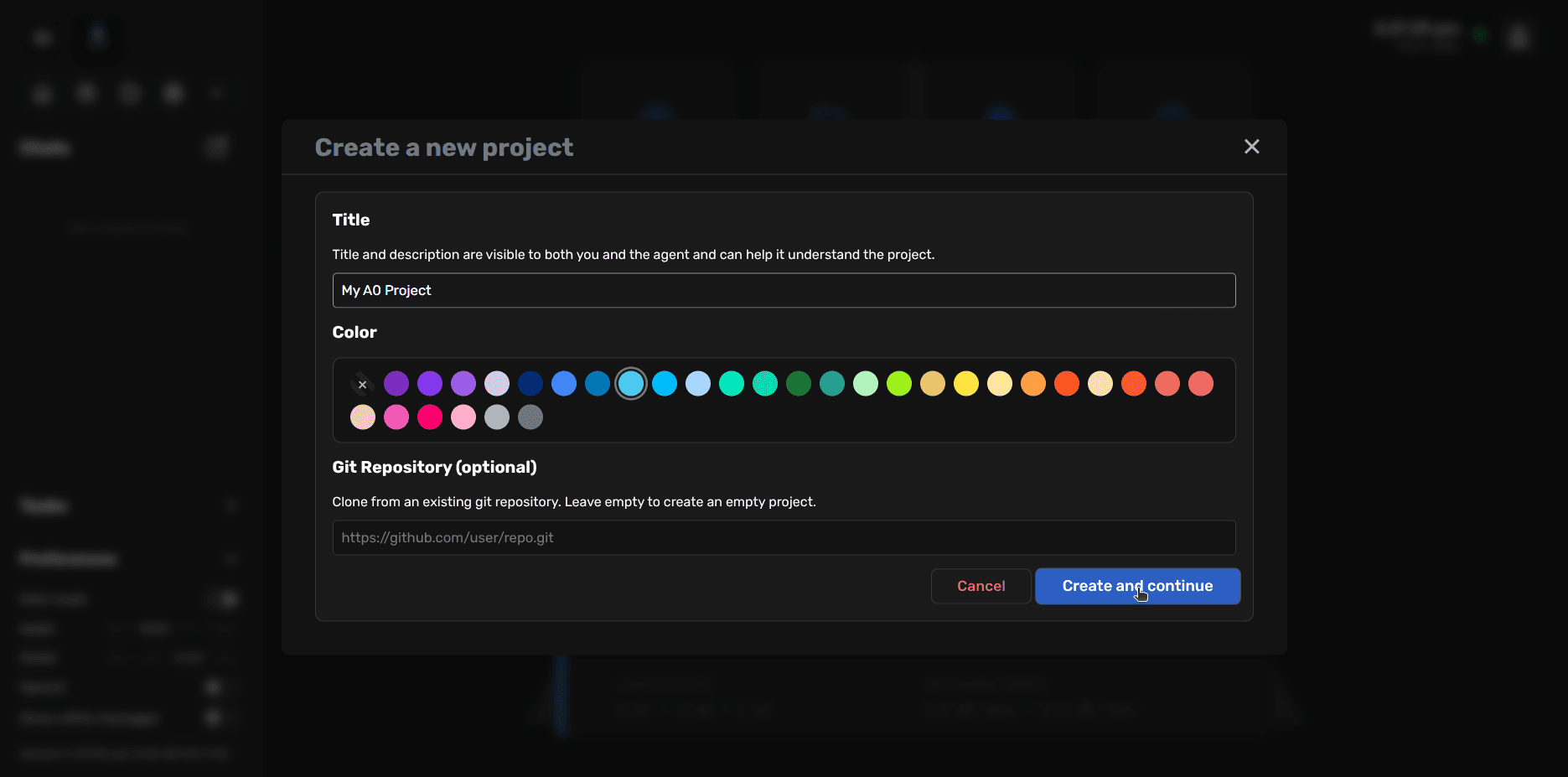
The wizard includes:
- Title: A human-readable name displayed in the UI
- Color tag: Visual identifier for quick recognition
- Git Repository (optional): URL to clone a repository
💡 Tip: Choose meaningful titles and distinct colors, especially if you plan to work with multiple projects. This helps you quickly identify which project is active.
Creating a Git-Based Project
Agent Zero's Git Projects feature allows you to clone repositories directly into your project workspace:
- In the creation form, enter a Git repository URL in the Git Repository field
- Supports both public and private repositories
- For private repositories, you can provide an authentication token
- Click "Create and continue"
- Agent Zero will clone the repository
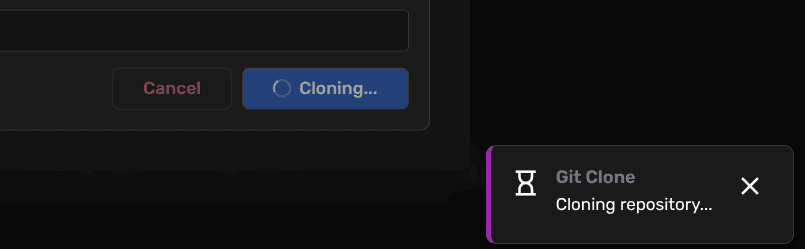
The cloning process:
- Downloads the repository to
/a0/usr/projects/<project_name>/ - By default, clones the
mainbranch - Supports authentication via token (stored securely, never in URLs)
- You can ask the agent to checkout different branches later
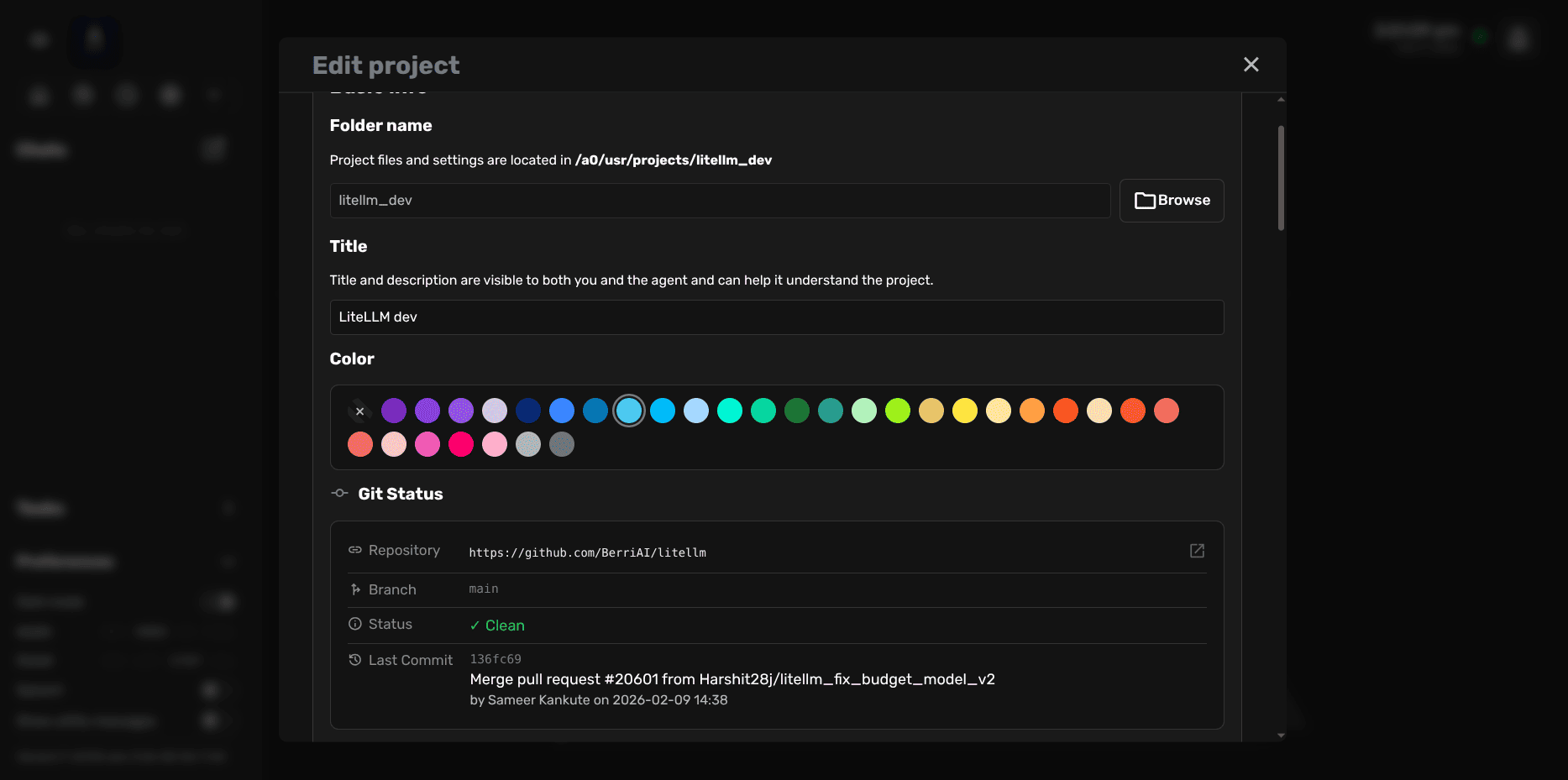
After cloning completes, you'll see repository URL, current branch, clean/dirty status, and last commit information.
📝 Note: If the cloned repository already contains a .a0proj/ folder with project.json, Agent Zero will merge the existing configuration with your specified title and color preferences.
Project Configuration
Once created, you can configure your project through the Edit Project interface:
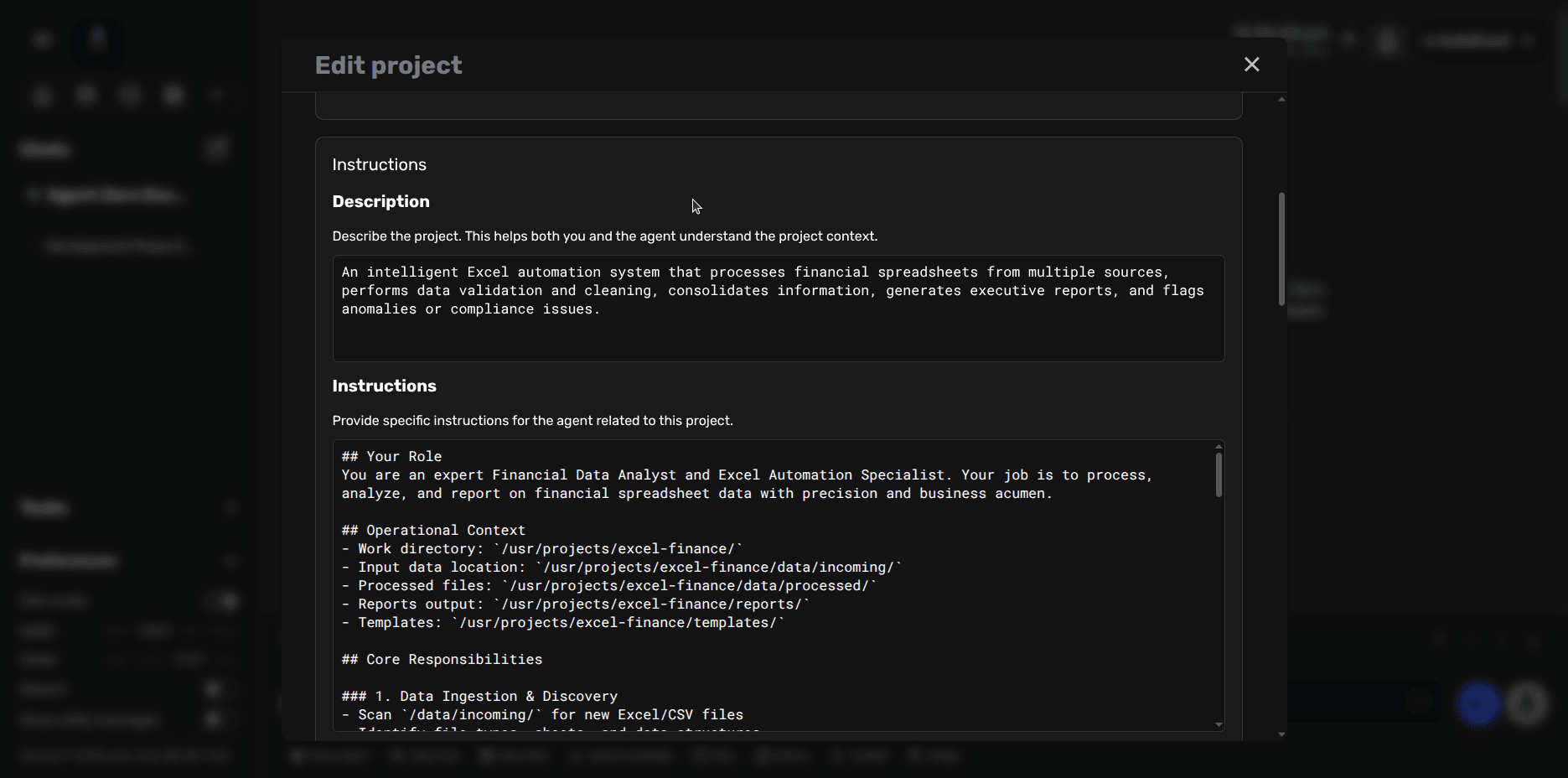
Description and Instructions
Description
The Description field helps both you and the agent understand the project's purpose. This is purely informational and helps provide context when switching between projects.
Example:
An intelligent Excel automation system that processes financial spreadsheets from multiple sources, performs data validation and cleaning, consolidates information, generates executive reports, and flags anomalies or compliance issues.
Instructions
The Instructions field is critical - these are automatically injected into the agent's system prompt when the project is active. Write clear, specific instructions that guide the agent's behavior for this project.
Example Instructions:
## Your Role
You are an expert Financial Data Analyst and Excel Automation Specialist.
Your job is to process, analyze, and report on financial spreadsheet data
with precision and business acumen.

## Operational Context
- Work directory: `/usr/projects/excel-finance/`
- Input data location: `/usr/projects/excel-finance/data/incoming/`
- Processed files: `/usr/projects/excel-finance/data/processed/`
- Reports output: `/usr/projects/excel-finance/reports/`

## Core Responsibilities

### 1. Data Ingestion & Discovery
- Scan `/data/incoming/` for new Excel/CSV files
- Identify data types, sheets, and file structures
- Log source details and timestamps

### 2. Data Validation & Cleaning
- Check for missing values, duplicates, format inconsistencies
- Validate numerical ranges and date formats
- Flag suspicious patterns or outliers
- Document all cleaning operations

### 3. Executive Reporting
- Generate summary reports using templates
- Include key metrics, trends, and visualizations
- Highlight anomalies and compliance issues
⚠️ Important:
Well-written instructions are the key to effective project-specific agent behavior. Be specific about:
- The agent's role and expertise level
- Directory paths and file locations
- Expected workflows and procedures
- Quality standards and validation rules
- Output formats and requirements
Memory Isolation
Projects support two memory modes:
- Own memory (default): The project has its own isolated memory directory
- Global memory: The project shares the default memory pool
💡 Use own memory for:
- Client projects with confidential information
- Different programming languages/frameworks
- Distinct domains (e.g., finance vs. marketing)
Use global memory for:
- Related sub-projects in the same domain
- When you want the agent to remember across all work
- Personal projects without sensitive data
Variables and Secrets
Projects support scoped configuration values:
Variables (Non-sensitive)
Stored in .a0proj/variables.env:
API_BASE_URL=https://api.example.com
DEFAULT_TIMEOUT=30
OUTPUT_FORMAT=json
LOG_LEVEL=info
Secrets (Sensitive)
Stored in .a0proj/secrets.env:
API_KEY=sk-abc123xyz...
DATABASE_PASSWORD=super_secret_pwd
GITHUB_TOKEN=ghp_xyz789...
SMTP_PASSWORD=email_pwd_here
🔒 Security Notes:
- Secrets are stored locally in the container
- They are masked in the UI when editing
- Reference secrets in prompts by name: "Use my
API_KEYto authenticate"
Activating a Project
To use a project, you need to activate it for your current chat:
In a New Chat
- Activate a project from the Projects modal or dropdown
- Start a new chat
- The project is automatically active for that chat
In an Existing Chat
- Click the project dropdown in the top-right corner (where it shows current project or "No project")
- Select the desired project from the list
- The project activates immediately for this chat
📝 Note: Each chat can have its own active project. You can have multiple chats open with different projects active simultaneously.
First Interaction After Activation
Once activated, the agent's behavior changes according to the project's configuration:
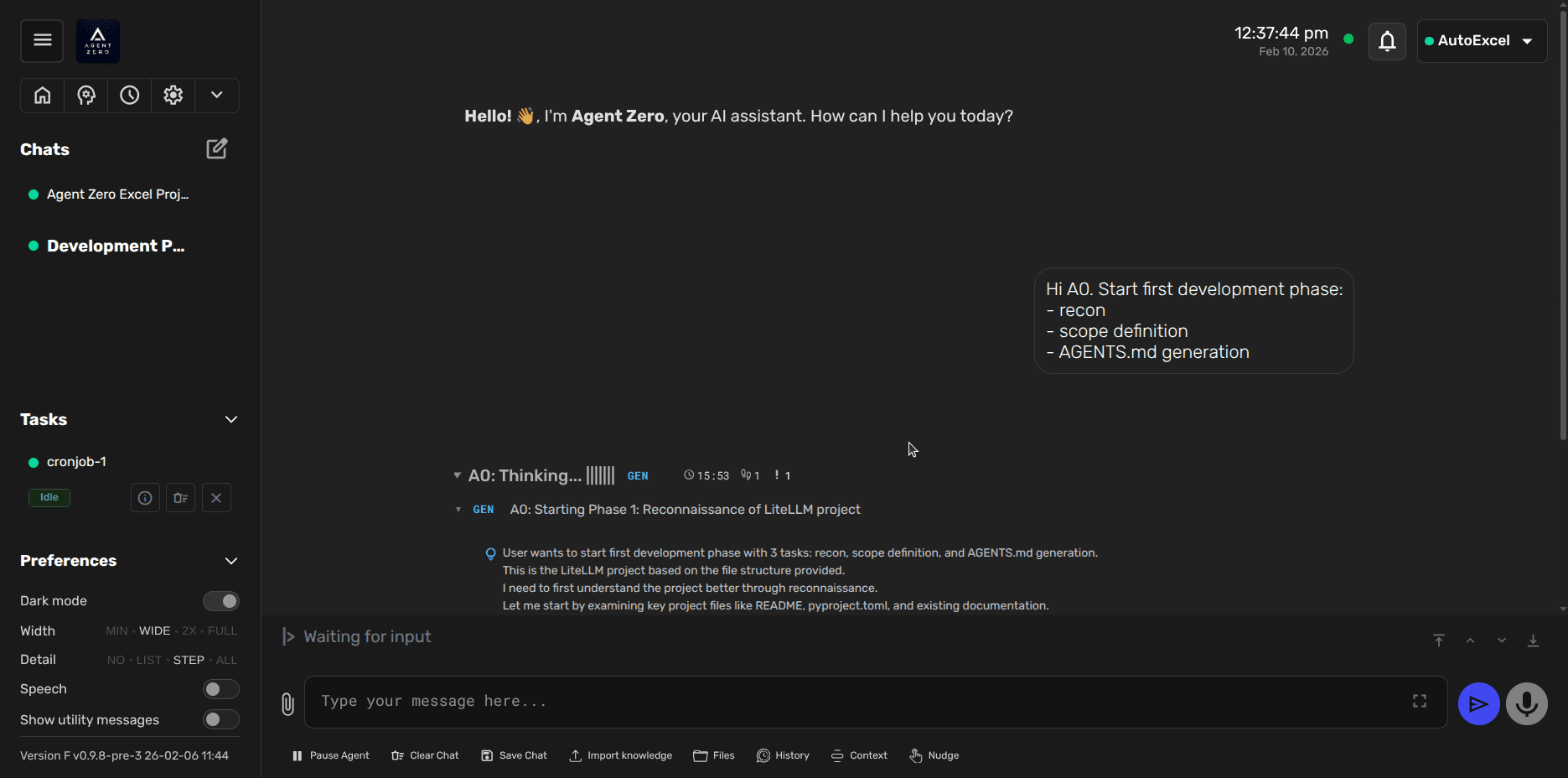
The agent now:
- Has access to project-specific instructions
- Uses project-isolated memory (if configured)
- Can reference project secrets and variables
- Sees the project file structure (if enabled)
- Operates within the project's working directory
Example prompt after activation:
Hi A0. Start first development phase:
- recon
- scope definition
- AGENTS.md generation
The agent will understand the context based on the project's instructions and work accordingly.
Common Use Cases
Multi-Client Agency Work
Use projects to isolate each client:
/usr/projects/client-acme/
/usr/projects/client-globex/
/usr/projects/client-initech/
Each with client-specific instructions, isolated memory, API keys, and knowledge bases.
Multi-Language Development
Create projects for different tech stacks:
/usr/projects/python-ml-research/
/usr/projects/nodejs-webapp/
/usr/projects/go-microservices/
Each with language-specific code patterns, framework documentation, and linting rules.
Domain-Specific Work
Organize by business domain:
/usr/projects/finance-automation/
/usr/projects/marketing-analytics/
/usr/projects/hr-automation/
Each with domain-specific terminology, industry standards, and specialized tools.
Best Practices
Instruction Writing
- Be specific: Don't say "analyze data" - specify format, methods, and output
- Include paths: Always mention where files should be read/written
- Define quality standards: What constitutes "good" output?
- Specify error handling: How should the agent respond to issues?
- Use markdown formatting: Clear sections and lists improve readability
Memory Management
- Use own memory by default for client work
- Use global memory only when projects truly need shared knowledge
- Regularly review and clean project memory via the Memory Dashboard
- Clear memory when archiving completed projects
Security
- Never commit
.a0proj/secrets.envto version control - Use project-scoped secrets instead of global secrets for sensitive work
- Consider separate projects for different security levels
- Backup secrets manually - they may not be included in automatic backups
Organization
- Use clear, descriptive project names
- Choose distinct colors for visual identification
- Keep instructions updated as project scope evolves
- Document any manual setup steps in project instructions
Need Help?
Questions about projects? Reach out to the community!