Automation
Tasks & Scheduling
Automate recurring workflows with Agent Zero's powerful task scheduler. Create scheduled cron jobs, plan specific executions, and integrate with projects for context-aware automation.
What are Tasks?
Agent Zero includes a built-in task scheduler that enables unattended automation. Tasks are agent executions that run automatically based on schedules, specific dates, or manual triggers - perfect for recurring workflows like reports, monitoring, and data processing.
Task Types
- Scheduled Tasks: Recurring executions using cron syntax (daily reports, hourly checks)
- Planned Tasks: Specific date/time list (one-time deployments, timed notifications)
- Ad-hoc Tasks: Manual execution only (on-demand operations, testing)
💡 Integration: Tasks work exceptionally well with Projects, allowing automated workflows with project-specific context, secrets, and memory.
Accessing the Scheduler
Via Dashboard
- Click Dashboard in the sidebar
- Click the Scheduler button
- The Task Scheduler modal opens, showing all tasks
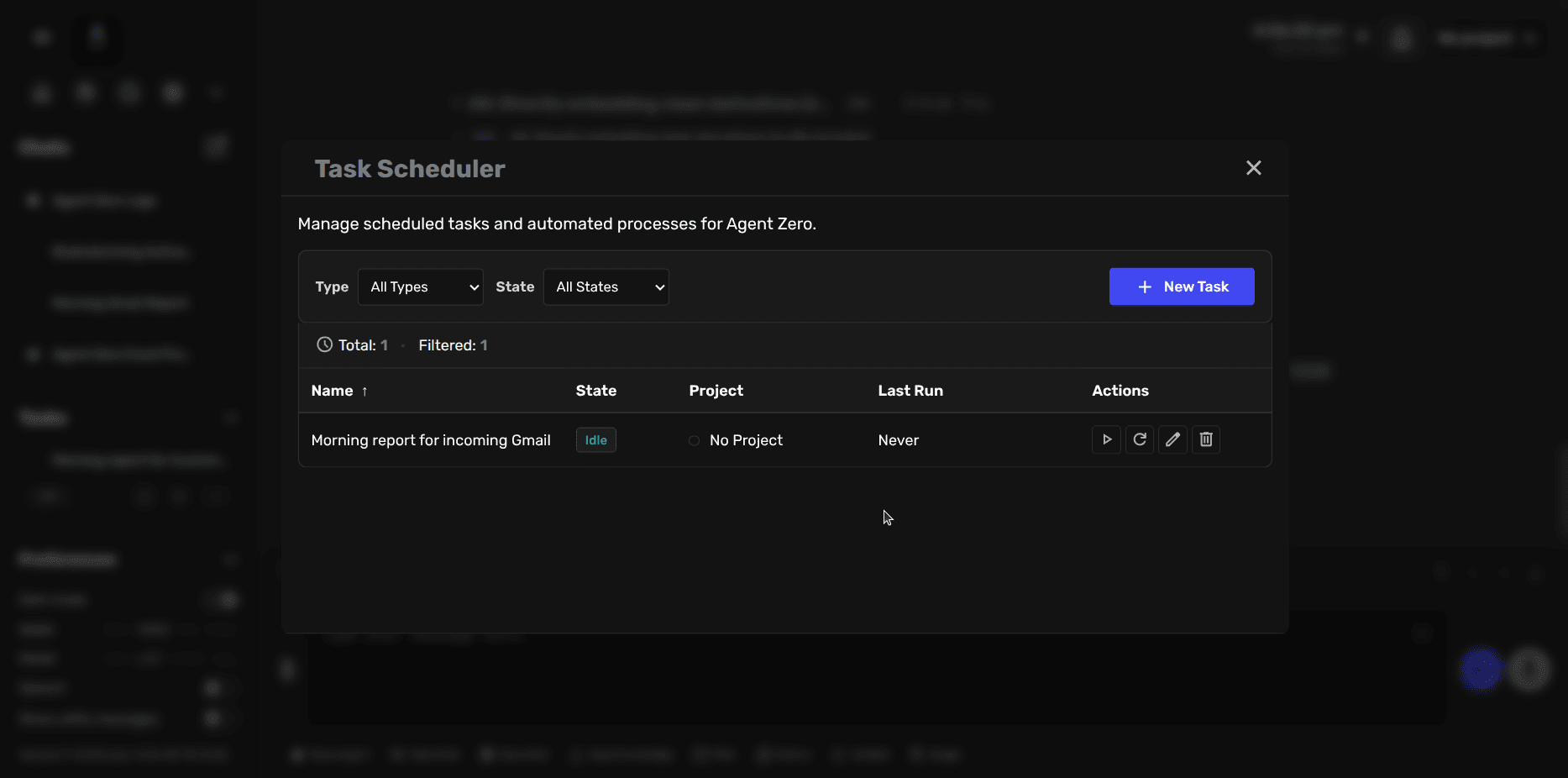
What You'll See
- Task List: All tasks with status indicators
- Task Details: Name, project association, last run, next run time
- Quick Actions: Edit, enable/disable, run now, delete
Creating Tasks
Via User Interface
- Open the Task Scheduler from the Dashboard
- Click "Create Task"
- Configure task settings (see Configuration section below)
- Click "Save"
Via Chat
Ask the agent to create tasks programmatically:
Example:
Create a scheduled task that checks my email inbox every morning at 8 AM
and summarizes new messages from the last 24 hours.
The agent uses the scheduler tool to create tasks based on your natural language description.
Task Configuration
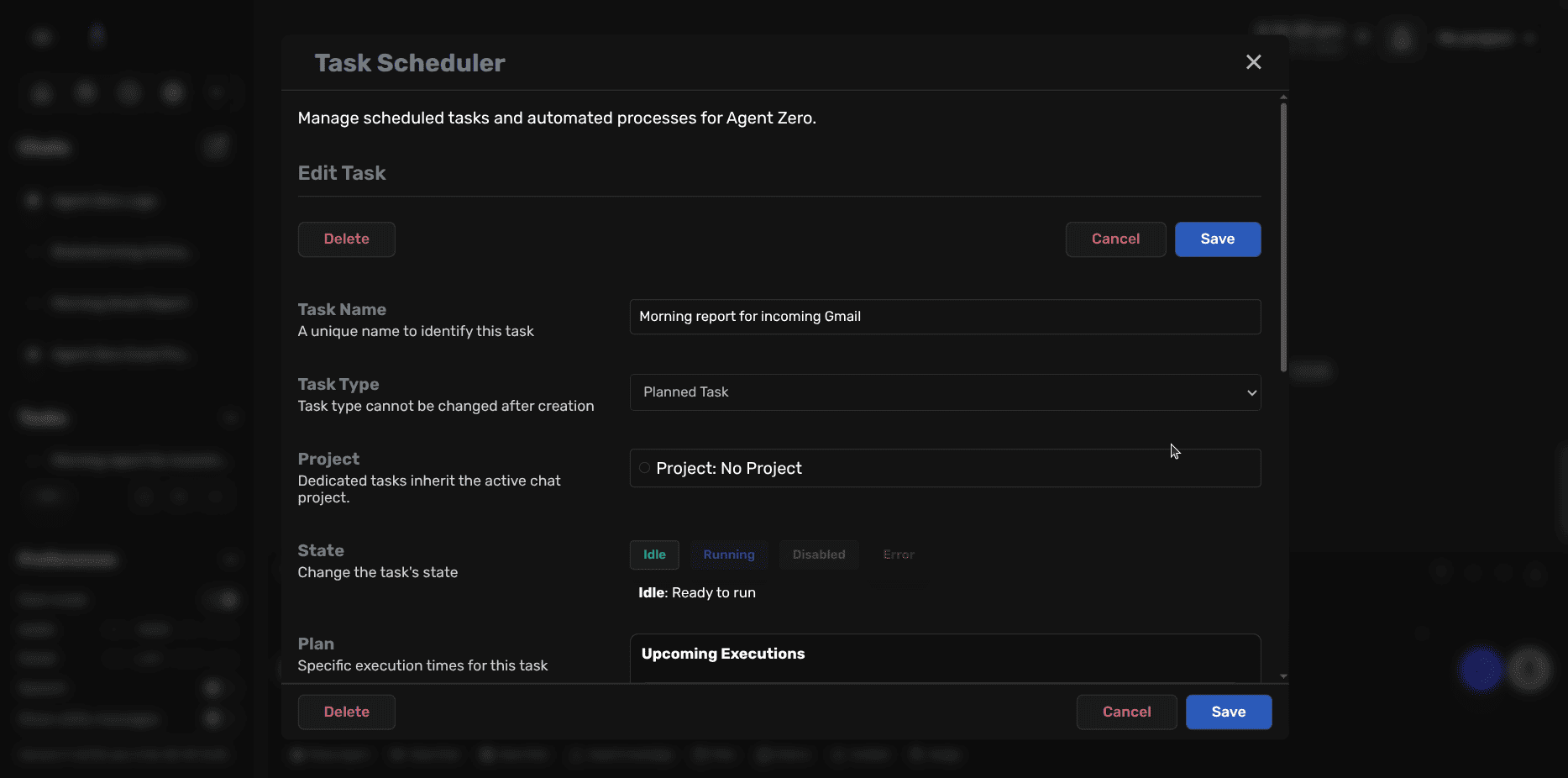
Task Name
A unique identifier for the task:
- Use descriptive names: "Morning report for incoming Gmail"
- Keep it concise but clear
- Helps identify tasks in logs and notifications
Task Type
Choose the execution model:
- Scheduled: Recurring cron-based execution
- Planned: Specific date/time list
- Ad-hoc: Manual execution only
📝 Note: Task type cannot be changed after creation. To switch types, create a new task.
Project Association
Optionally link the task to a project:
Benefits of project-scoped tasks:
- Task inherits project instructions automatically
- Access to project-specific secrets and variables
- Uses project's isolated memory (if configured)
- Runs in project's working directory
- Perfect for client-specific or domain-specific automation
Example:
- Project: "Financial Reports"
- Task: "Daily Portfolio Summary"
- Result: Task automatically uses financial analysis instructions, API keys, and memory from the project
State Management
Control task execution:
- Idle: Ready to run when scheduled (green indicator)
- Running: Currently executing (blue indicator)
- Disabled: Won't execute even if scheduled (gray indicator)
- Error: Last execution failed (red indicator)
Toggle state to temporarily disable tasks without deleting them.
Execution Plan
For Scheduled Tasks (Cron Syntax)
Configure recurring execution using cron patterns:
# Every day at 9 AM
0 9 * * *

# Every hour
0 * * * *

# Every Monday at 10 AM
0 10 * * 1

# Every 15 minutes
*/15 * * * *

# First day of month at midnight
0 0 1 * *
Timezone aware: Tasks respect your configured timezone setting
For Planned Tasks
Add specific execution times:
- Click "Add Execution Time"
- Pick date and time
- Tasks execute in order
- Completed executions move to "Done" list
Task Execution
Dedicated vs. Shared Context
Dedicated Context (recommended):
- Each task has its own isolated chat history
- Prevents context pollution between tasks
- Better for independent, recurring workflows
- Default for UI-created tasks
Shared Context:
- Task shares a chat context
- Can build on previous task executions
- Useful for sequential, related operations
- Typically used for agent-created tasks
Execution Flow
When a task runs:
1. Context Preparation
- Creates or loads the task's chat context
- Activates associated project (if configured)
- Loads project instructions, secrets, and memory
2. Prompt Injection
- Injects system prompt (if specified)
- Adds task-specific instructions
- Includes any file attachments
3. Agent Execution
- Agent receives the prompt as a user message
- Executes using available tools
- Can use project-scoped resources
4. Result Handling
- Stores execution result and timestamp
- Updates task state (idle or error)
- Sends notifications (if configured)
- For Planned Tasks: moves execution to "Done" list
Monitoring Execution
Real-time monitoring:
- Running tasks show "Running" state in scheduler
- View task's chat context to see agent progress
- Stop tasks mid-execution if needed
Execution history:
- Last Run: Timestamp of most recent execution
- Next Run: Scheduled time for next execution
- Last Result: Output or error from last run
Common Use Cases
Daily Reports
Task: "Morning Inbox Summary"
Type: Scheduled (0 9 * * *)
Project: "Email Automation"
Prompt: "Check my Gmail inbox for new messages from the last 24 hours.
Summarize important emails by category and highlight any urgent items."
Periodic Monitoring
Task: "Server Health Check"
Type: Scheduled (*/30 * * * *)
Project: "Infrastructure"
Prompt: "Check all production servers. Report any issues with
CPU usage over 80%, memory over 90%, or disk space below 10%."
Data Processing
Task: "Daily Sales Analysis"
Type: Scheduled (0 1 * * *)
Project: "Sales Analytics"
Prompt: "Process yesterday's sales data from /data/sales/.
Generate summary report with trends, top products, and anomalies.
Save report to /reports/ and email to team."
Scheduled Deployments
Task: "Weekly Production Deploy"
Type: Planned (Sundays at 2 AM)
Project: "DevOps"
Prompt: "Deploy latest release to production environment.
Run post-deployment tests. Alert on-call engineer if issues detected."
Content Publishing
Task: "Social Media Updates"
Type: Scheduled (0 10,14,18 * * *)
Project: "Marketing"
Prompt: "Check /content/queue/ for scheduled posts.
Publish the next item to Twitter, LinkedIn, and Facebook.
Move published content to /content/archive/."
Best Practices
Task Design
- Be specific: Clear, detailed prompts lead to consistent results
- Include error handling: Tell the agent what to do if something fails
- Define success criteria: How should the agent verify completion?
- Use projects: Leverage project-scoped context and secrets
Scheduling
- Consider dependencies: Stagger tasks that depend on each other
- Avoid peak hours: Schedule heavy tasks during low-usage periods
- Test timing: Ensure tasks complete before the next execution
- Use appropriate frequency: Don't over-schedule; balance freshness vs. resources
Monitoring
- Check execution logs: Review task results regularly
- Set up notifications: Alert on failures or important events
- Test tasks manually: Use ad-hoc execution to verify behavior
- Keep prompts updated: Adjust as requirements or APIs change
Need Help?
Questions about task scheduling? Reach out to the community!