Documentation
Browser
Agent Zero has a built-in Browser for research, forms, screenshots, UI review, downloads, extensions, and anything else that works best in a real browser.
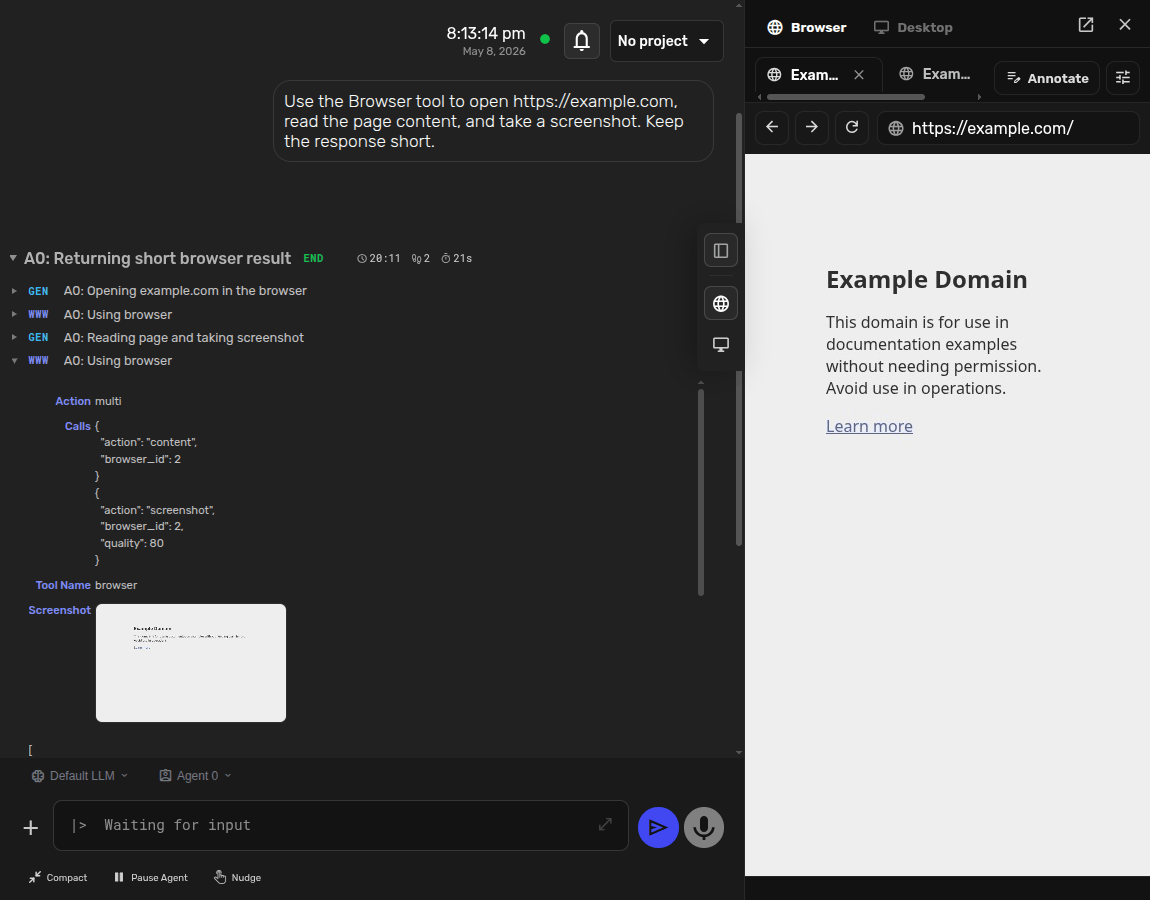
Open The Browser Surface
Open the right-side Canvas, select Browser, then click Open Browser or the plus button to create a new tab. The Browser surface shows tabs, back and forward controls, reload, an address bar, annotations, and settings.
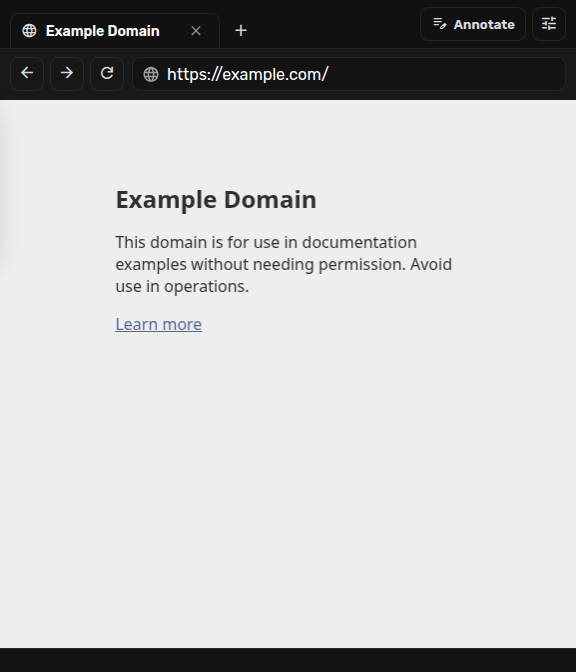
Ask The Agent To Browse
You can ask naturally: Use the Browser tool to open https://example.com, read the page content, and take a screenshot. Agent Zero can open pages, read content, click, type, upload files, and capture screenshots.
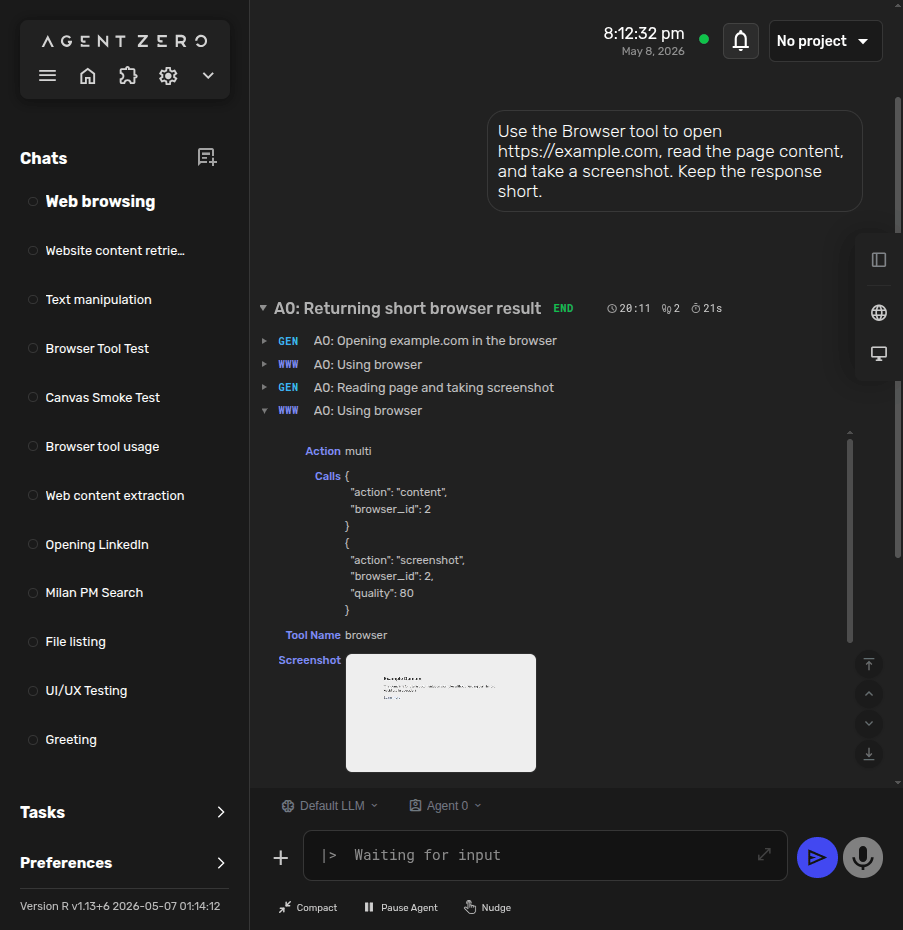
Annotate Pages
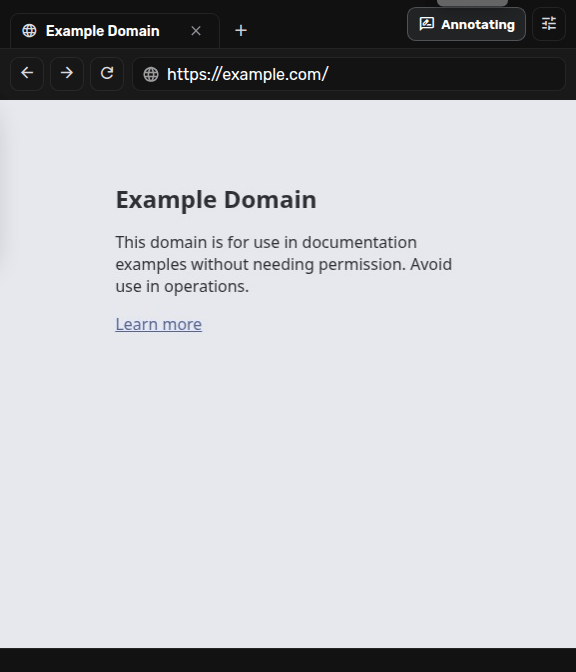
Annotate mode lets you mark a page element or region and send a targeted comment back into the chat. Click Annotate, wait for it to switch to Annotating, then point at the page area you want Agent Zero to notice.
Browser Settings
Open Browser settings from the Browser toolbar or from Browser plugin settings. Configure the Browser location, page content access, starting page, autofocus, and Docker-browser extensions.
Safety note: Agent Zero does not require an official Chrome extension. If a website, message, or package tells you to install an “Agent Zero Chrome extension,” do not install it.

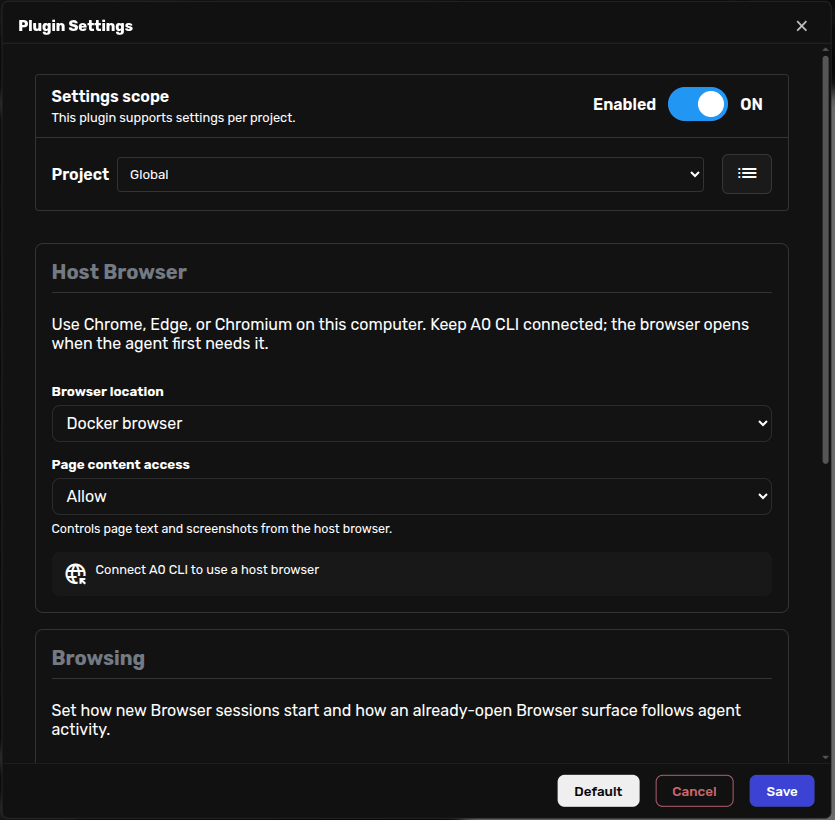
Bring Your Own Browser
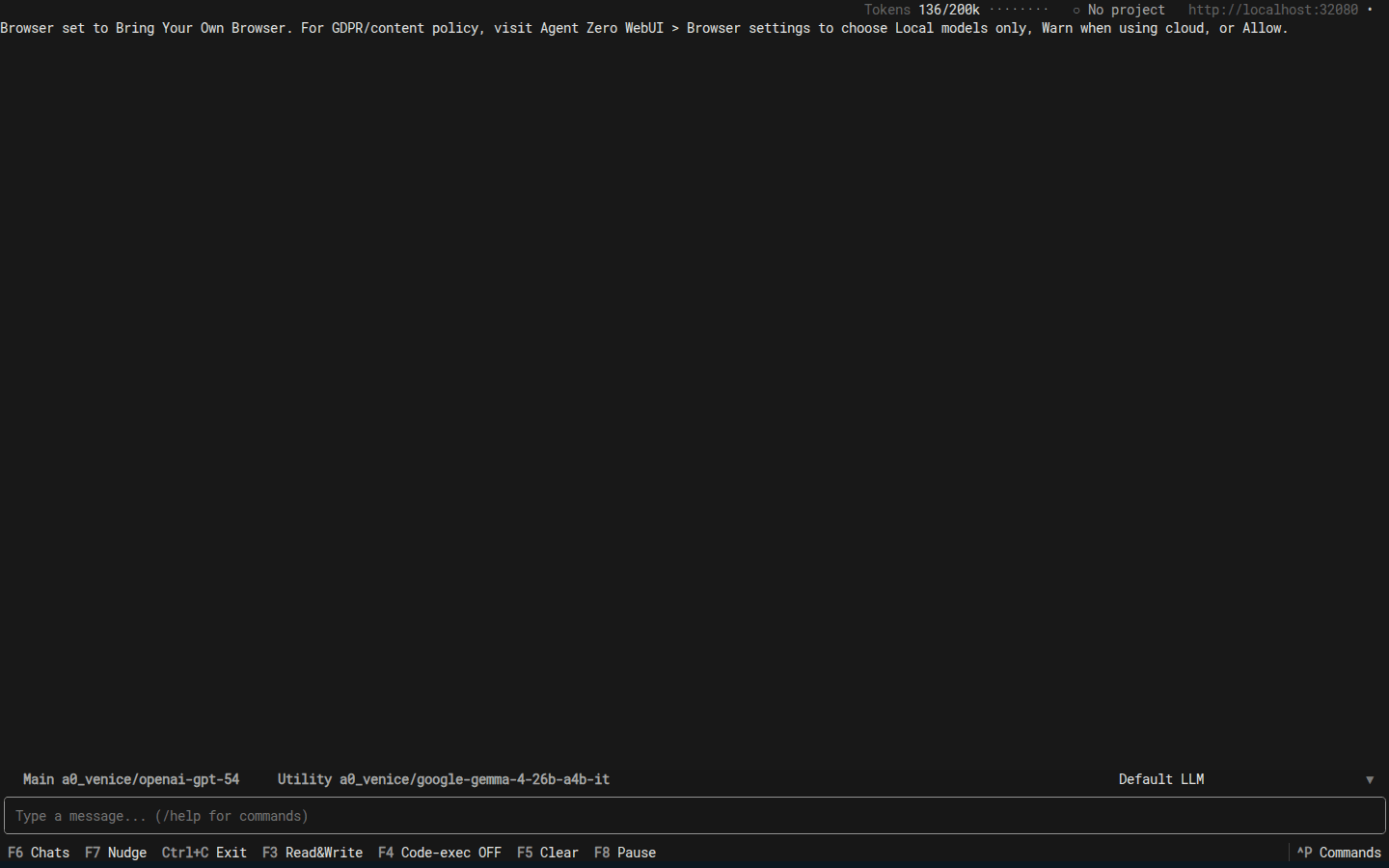
Bring Your Own Browser lets Agent Zero use Chrome, Edge, Brave, Opera, Vivaldi, or Chromium on your computer through the A0 CLI connector. Use it when a login, profile, or page should stay on your machine.
Once A0 CLI is connected and host browser mode is active, you can control the host browser from Agent Zero Web UI as well. The Browser plugin settings surface the same mode, profile, and page-content policy controls.
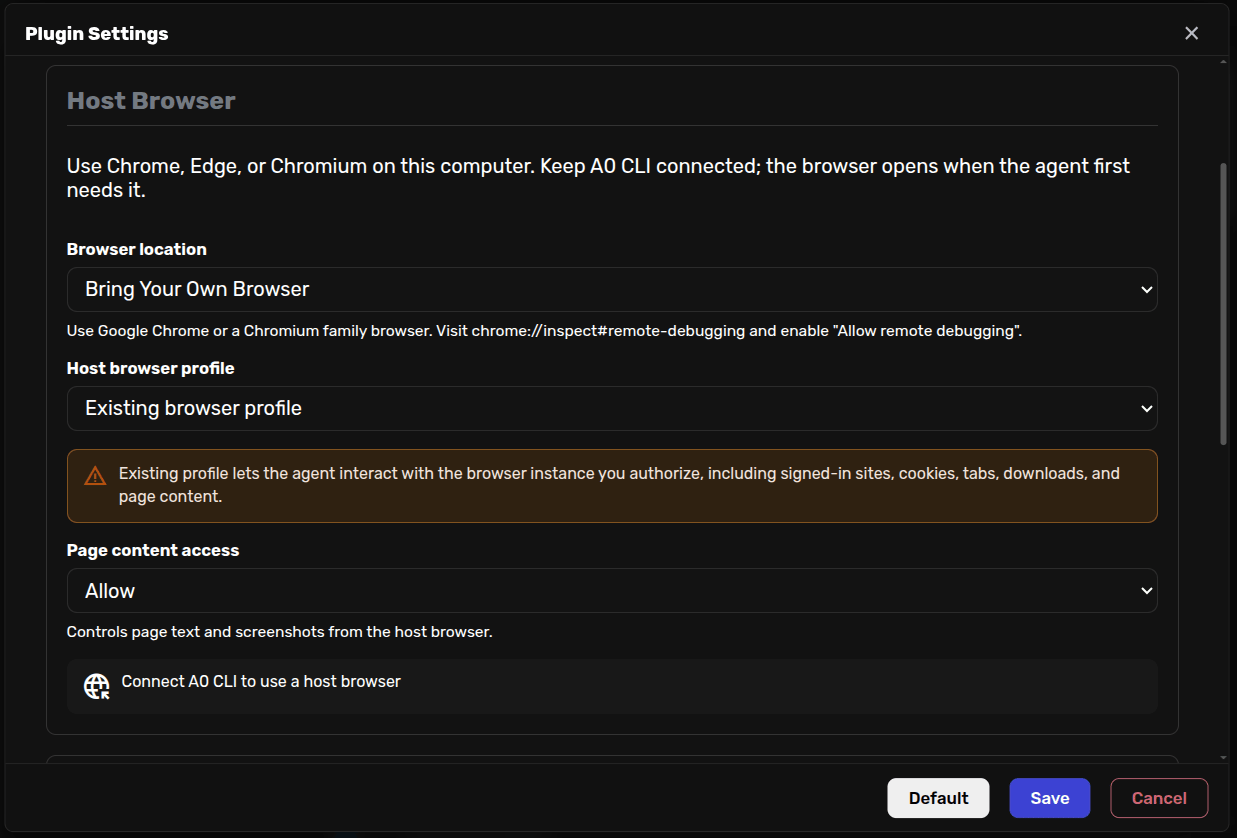
You can also manage the same flow from A0 CLI with the Browser commands. Use /browser status to check the connection, /browser list to show detected debug endpoints, /browser auto to return to automatic selection, /browser 1 or /browser ws://... to pick a target, and /browser host on to switch the chat to host-browser mode.
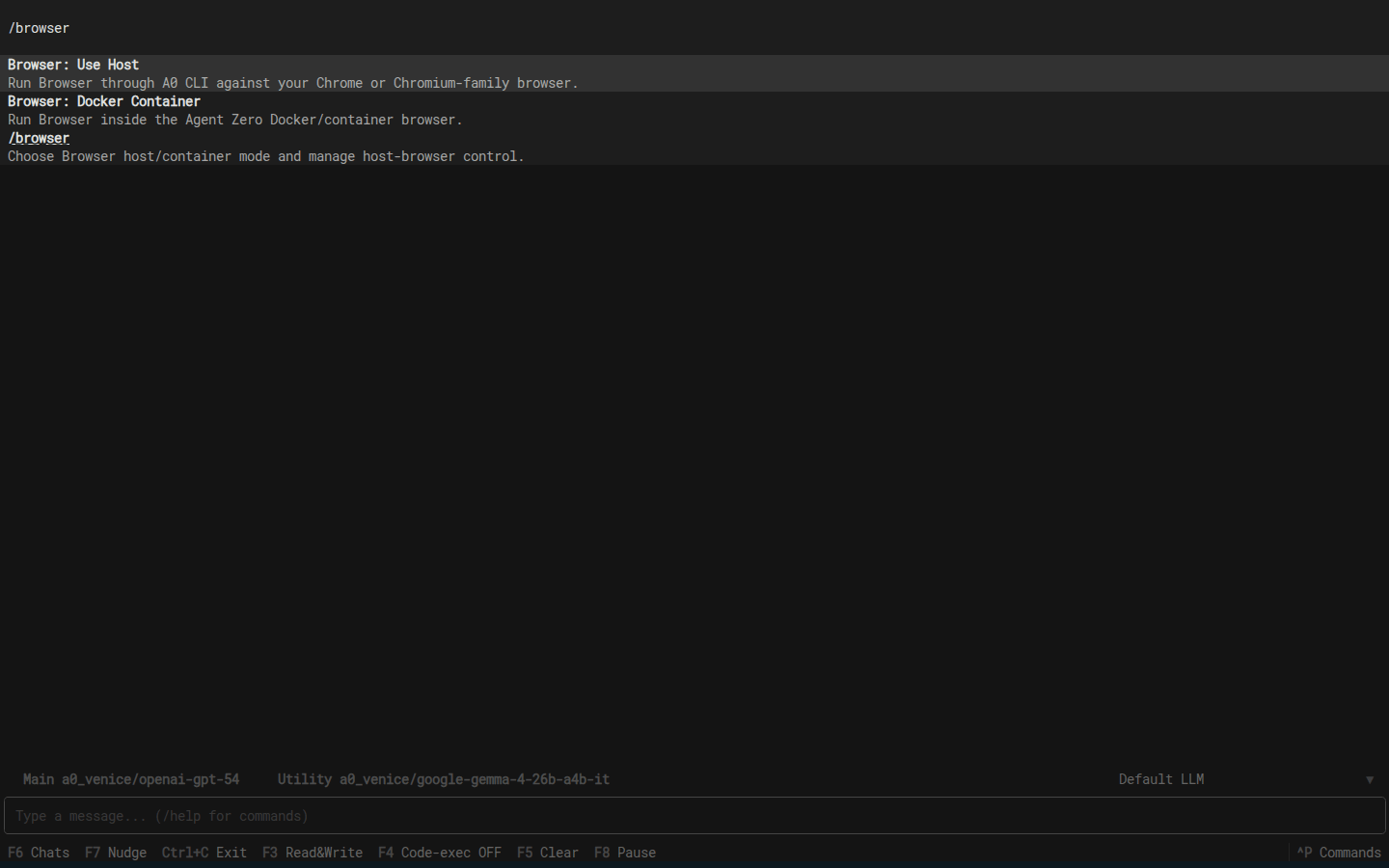
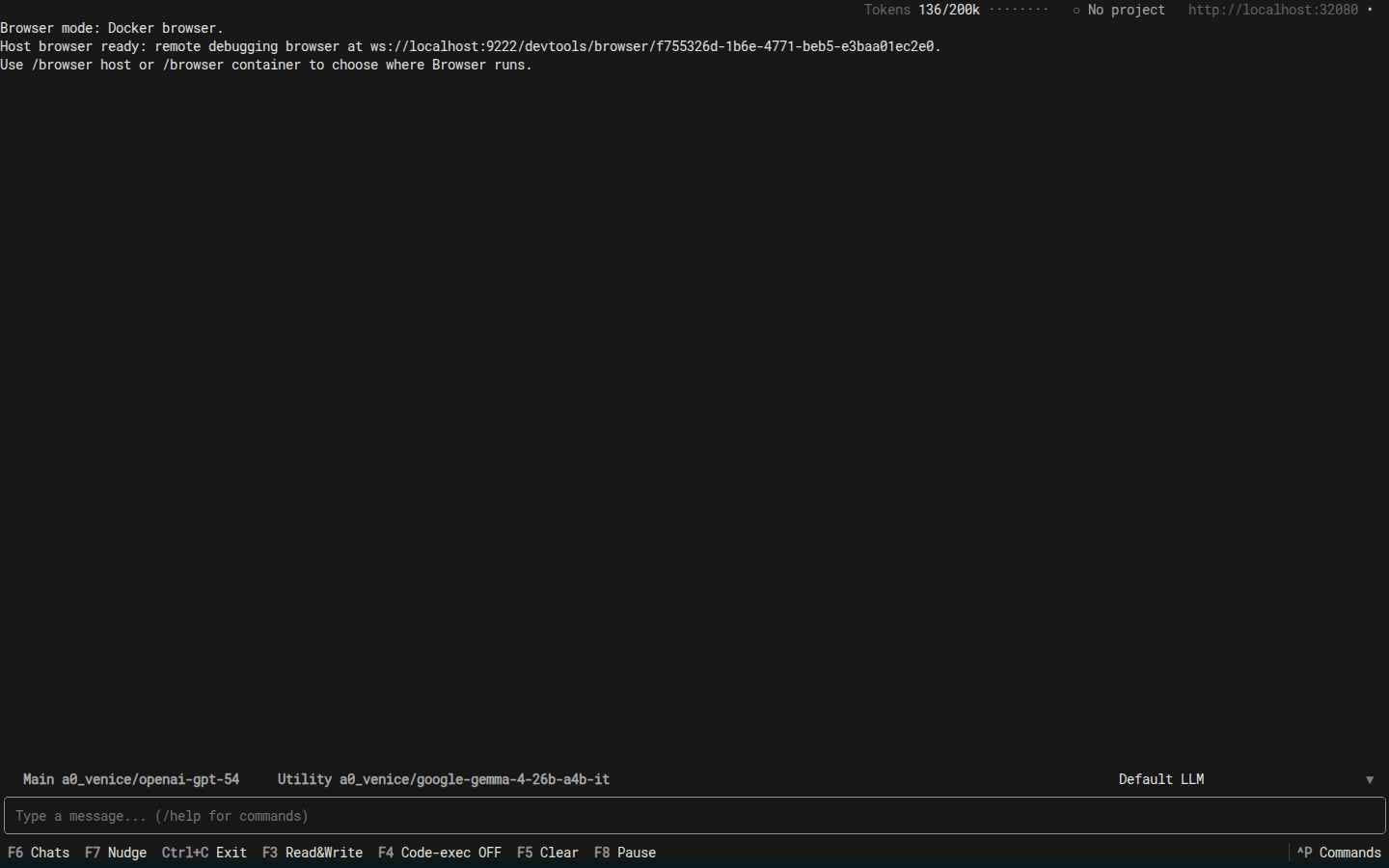
If you use an already-open browser, open its remote debugging page and enable remote debugging for that browser instance. Chrome, Edge, Brave, Vivaldi, and Chromium use chrome://inspect/#remote-debugging. Opera uses opera://inspect/#remote-debugging.
The Host browser list in Browser settings updates while the settings view is open. It shows Automatic, advertised debug endpoints, and Custom endpoint. If you only have a debug port such as 127.0.0.1:34535, open http://127.0.0.1:34535/json/version and copy the webSocketDebuggerUrl into Custom endpoint.
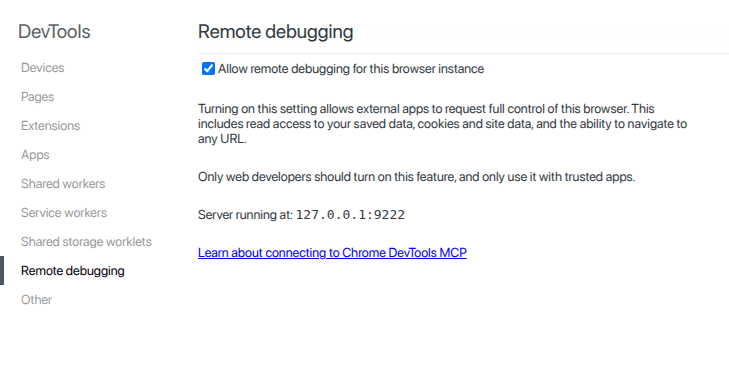
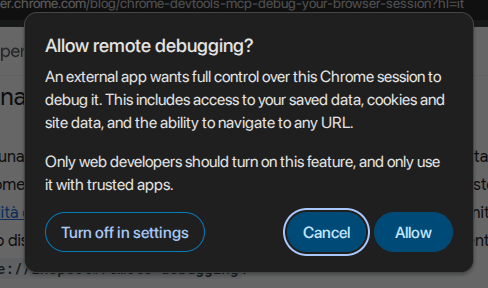
Important: remote debugging grants control of that browser session, including cookies and site data. Enable it only for browser instances you intend Agent Zero to control.
Troubleshooting
- If the Browser surface does not open automatically, open it manually from Canvas.
- If Canvas does not follow the agent, enable Autofocus active page.
- If host-browser content is blocked, switch to a local model or adjust Browser page content access.