System Features
Memory Management
Agent Zero includes a sophisticated memory system that stores and retrieves information from conversations, knowledge sources, and learning experiences through its Memory Dashboard.
What is Agent Memory?
Agent Zero's memory system uses vector embeddings to store, organize, and retrieve information. This enables the agent to remember conversations, learn from interactions, and access imported knowledge efficiently.
Memory Types
- Conversation Memory: Stores chat history and interactions
- Knowledge Base: Imported documents and reference materials
- Learning Memory: Patterns and insights gathered from tasks
- Project Memory: Project-specific isolated or shared memory
💡 Key Feature: The Memory Dashboard provides a powerful interface to view, search, filter, edit, and delete memory entries stored in the vector database.
Accessing the Memory Dashboard
- Click the Memory button in the sidebar
- The dashboard displays all memory entries with their metadata and preview
- Memory entries are organized by directory (e.g., "default") and area (e.g., "All Areas", "main")
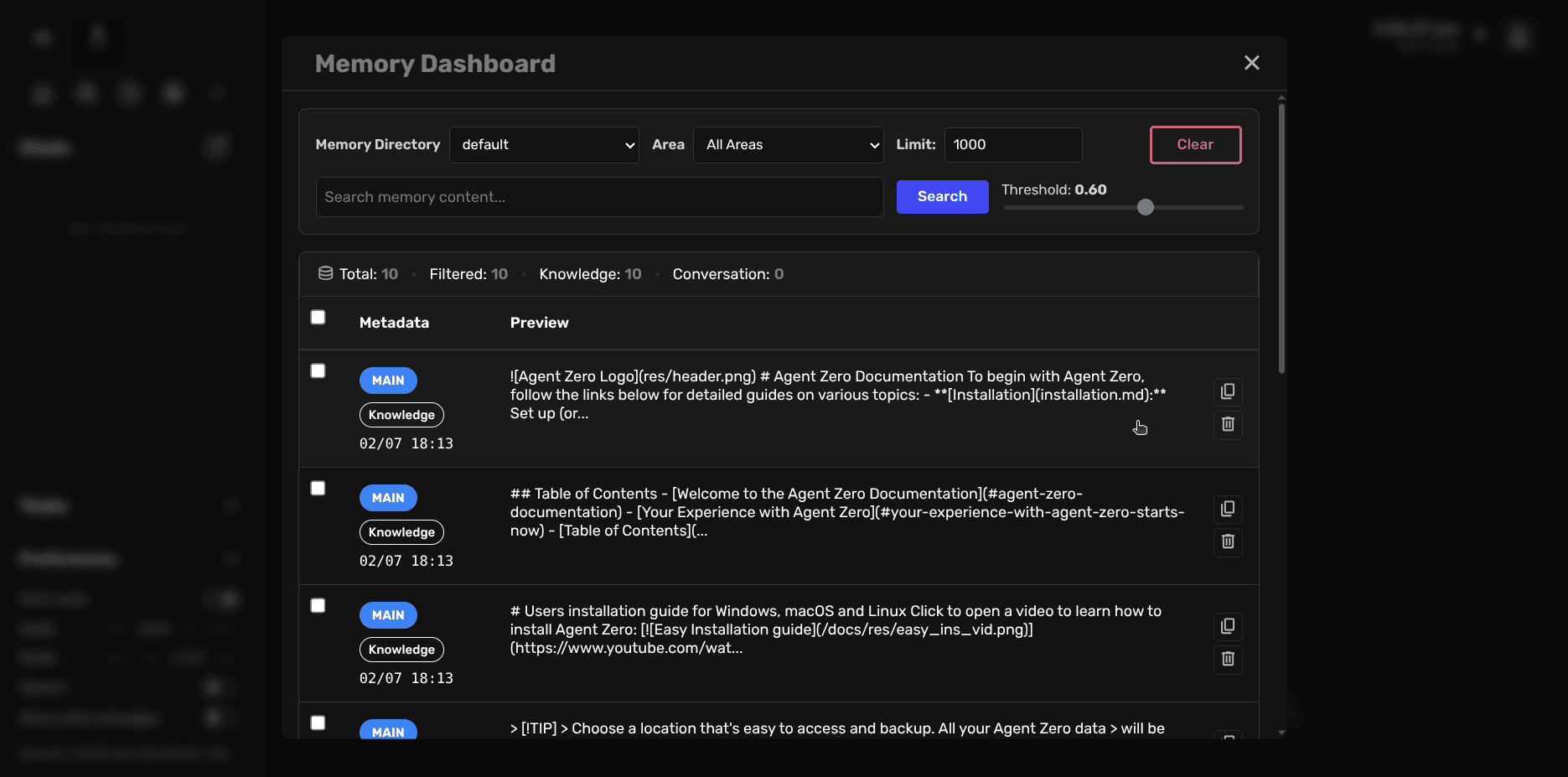
Dashboard Features
Filtering and Organization
The dashboard provides several ways to organize and filter memory entries:
- Memory Directory: Select which memory directory to view (default or project-specific)
- Area Filter: Filter memories by area to focus on specific contexts
- Limit Control: Adjust the number of results displayed (default: 1000)
Statistics Bar
View counts at a glance:
- Total: All memory entries in the directory
- Filtered: Entries matching current filters
- Knowledge: Entries from knowledge sources
- Conversation: Entries from chat interactions
Search Functionality
Find specific memories using the powerful search feature:
- Search Bar: Enter keywords to search memory content
- Threshold Slider: Adjust search sensitivity (0.00 - 1.00)
- Lower values return more results with looser matching
- Higher values return fewer, more precise matches
- Default threshold: 0.60
- Real-time Search: Results update as you type
💡 Tip: Use the threshold slider to balance between broad discovery (lower values) and precise matching (higher values). Start with 0.60 and adjust based on your results.
Memory Entry Information
Each memory entry displays key information:
- Tags: Visual indicators showing the memory type (MAIN, Knowledge, etc.)
- Timestamp: When the memory was created (format: MM/DD HH:MM)
- Preview: First few lines of the memory content
- Action Icons: Quick access to view details, edit, or delete
Viewing and Editing Memories
Click any memory entry to open the detailed view with full editing capabilities:
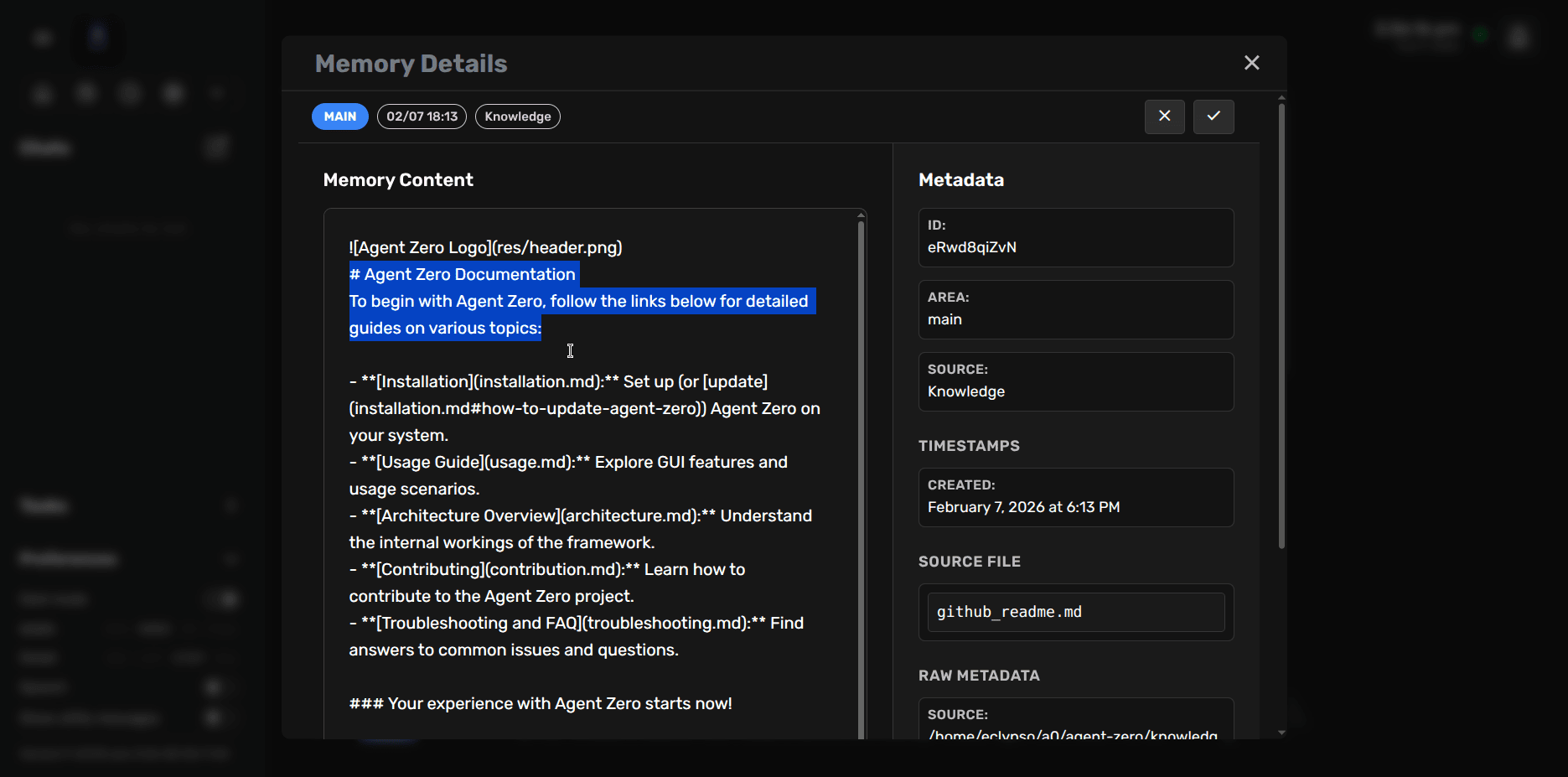
Memory Details View
The details panel provides comprehensive information:
Memory Content
- Full text of the stored memory
- Syntax highlighting for structured content
- Editable text area for modifications
Metadata Panel
- Unique ID
- Area classification
- Source type (e.g., "Knowledge")
- Timestamp (creation date and time)
- Source file (if applicable)
Editing Memory Content
- Click on a memory entry to open the details view
- Edit the content in the text area
- Click "Save Changes" to update the memory
- The memory is re-embedded with updated content
⚠️ Note: Editing memory content will regenerate its vector embeddings. This may affect how the agent retrieves this memory in future interactions.
Memory Management Operations
Deleting Memories
- Select memory entries you want to delete (checkbox next to each entry)
- Click the "Delete Selected" button
- Confirm the deletion
- Selected memories are permanently removed from the vector database
⚠️ Warning: Deleted memories cannot be recovered. Use caution when deleting, especially for conversation history or imported knowledge.
Bulk Operations
- Select All: Checkbox in header selects all visible entries
- Filter + Delete: Apply filters, select all, then delete to clean specific memory types
- Export: Future feature for backing up memories
Memory Cleanup Strategies
When to clean memory:
- Agent performance degrades due to too many irrelevant memories
- Project completion - archive or remove project-specific memories
- Context pollution - agent retrieves outdated or incorrect information
- Privacy concerns - remove sensitive conversation history
Best practices:
- Use project-specific memory to isolate client or domain data
- Periodically review and clean old conversation memories
- Keep knowledge base memories organized by source
- Use meaningful area classifications for easier filtering
Project Memory Integration
Memory Isolation with Projects
When a project has its own memory enabled, the Memory Dashboard shows project-specific directories:
- Select project memory directory from dropdown
- View only memories associated with that project
- Prevents context bleed between clients or domains
- Manage project knowledge separately
💡 Tip: For more information about project memory isolation and configuration, see the Projects Guide.
Knowledge Base Management
Importing Knowledge
- Click the "Import Knowledge" button in the action bar
- Select files to import (.txt, .pdf, .csv, .html, .json, .md)
- Files are processed and stored in
/a0/knowledge/custom/main - Content is automatically embedded and added to the vector database
💡 Tip: Imported knowledge is tagged as "Knowledge" type in the Memory Dashboard, making it easy to filter and manage separately from conversation memories.
Managing Knowledge Entries
- Filter by type: Use area filter to show only "Knowledge" memories
- Edit content: Update imported knowledge if source material changes
- Remove outdated: Delete obsolete knowledge to prevent confusion
- Organize by source: Use naming conventions in source files for easier management
Best Practices
Memory Organization
- Use project memory isolation for client work
- Regularly review and clean conversation history
- Keep knowledge base updated and relevant
- Use meaningful area classifications
- Balance memory size with performance
Search Optimization
- Start with threshold 0.60, adjust based on results
- Use specific keywords for better retrieval
- Filter by area before searching for faster results
- Verify search results match your intent
Maintenance
- Schedule periodic memory reviews
- Remove completed project memories after archiving
- Clear test or debugging memories regularly
- Monitor memory database size
- Use backup/restore before major cleanups
Need Help?
Questions about memory management? Reach out to the community!