Documentation
Use Agent Zero from Telegram
Connect a Telegram bot, choose who can use it, and talk to Agent Zero from your phone. Conversations also appear in the Web UI, so you can pick up the same work at your desk.
Start with one private bot using Polling. You do not need a public website, an incoming port, or a tunnel. Agent Zero must remain running and able to reach Telegram; model usage follows your normal Agent Zero configuration.
This guide describes the scoped Telegram integration in v2.15. If you already have a bot, start with Upgrading an existing setup. The screenshots use an unsaved example configuration, with no real credentials.
Connect your first bot
1. Check Agent Zero first
Send a short message in the Web UI and make sure Agent Zero replies. If model setup is incomplete, finish Onboarding before connecting Telegram. A working bot token does not configure an AI model.
2. Create a bot with BotFather
Open the official @BotFather in Telegram, send
/newbot, and follow its prompts for a display name and a unique bot username.
BotFather gives you a bot token. Keep it private: it controls the bot.
You do not need to write code or install another Telegram plugin.
Your bot's @username, your own @username, and the token are different things.
The token goes in Agent Zero; your own account goes in Allowed users.
See Telegram's bot creation guide
for the BotFather steps.
3. Open Telegram settings
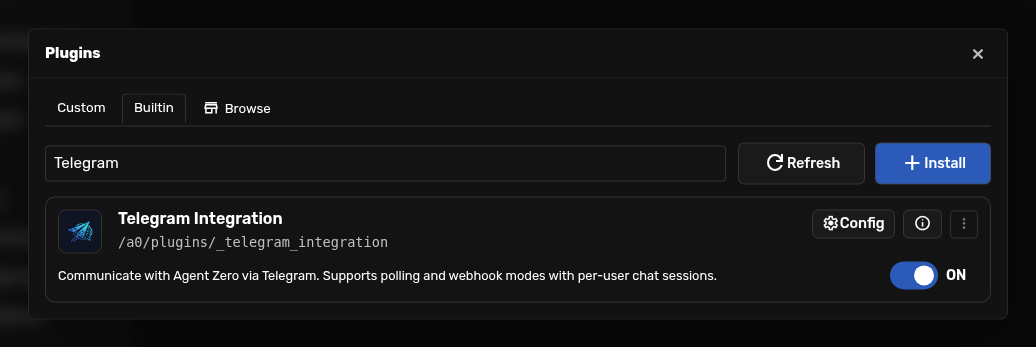
In Agent Zero, open Plugins → Builtin, search for Telegram, and click Config on Telegram Integration. The welcome screen's Connect Channels → Telegram shortcut opens the same settings when that card is visible.
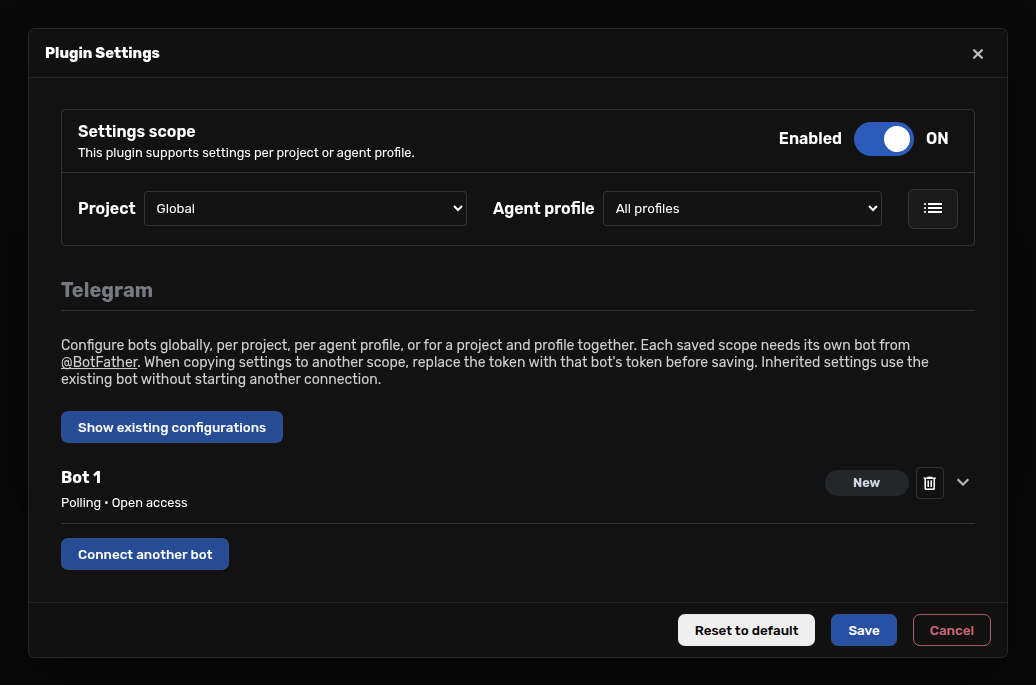
For your first bot, leave Project: Global and Agent profile: All profiles at the top. Make sure the plugin's Enabled toggle is on. If a bot is already listed, use Connect another bot to add a different bot, or open the existing card to edit it.
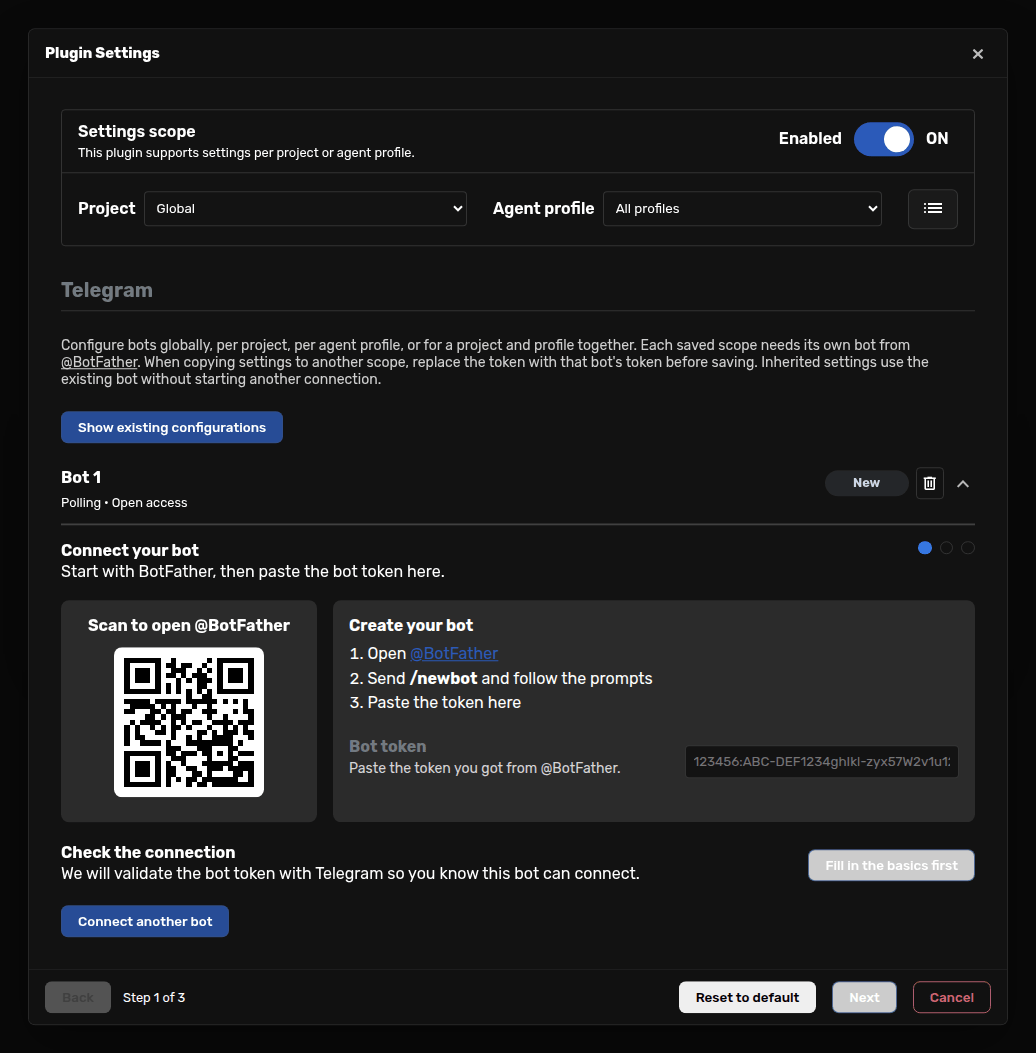
In Connect your bot, paste the token into Bot token, then click Next. The QR code opens BotFather; it does not sign in to your personal Telegram account.
4. Make it private before saving
In Choose who can use it, use these settings:
| Setting | First-bot choice |
|---|---|
| Bot name | A short internal label, such as personal_bot. This does not rename the Telegram account. |
| Delivery mode | Polling. |
| Allowed users | Your own exact @username from Telegram Settings, or your numeric Telegram user ID. |
| Administrator users | Leave empty to manage settings only from the Web UI. |
| Default project | No project, or an existing project where new conversations should start. |
| Turn on this bot | Enable it once the access list is filled in. |
Replace @your_username in the example below with your own account. Do not use
the bot's username, a phone number, or a group chat ID.
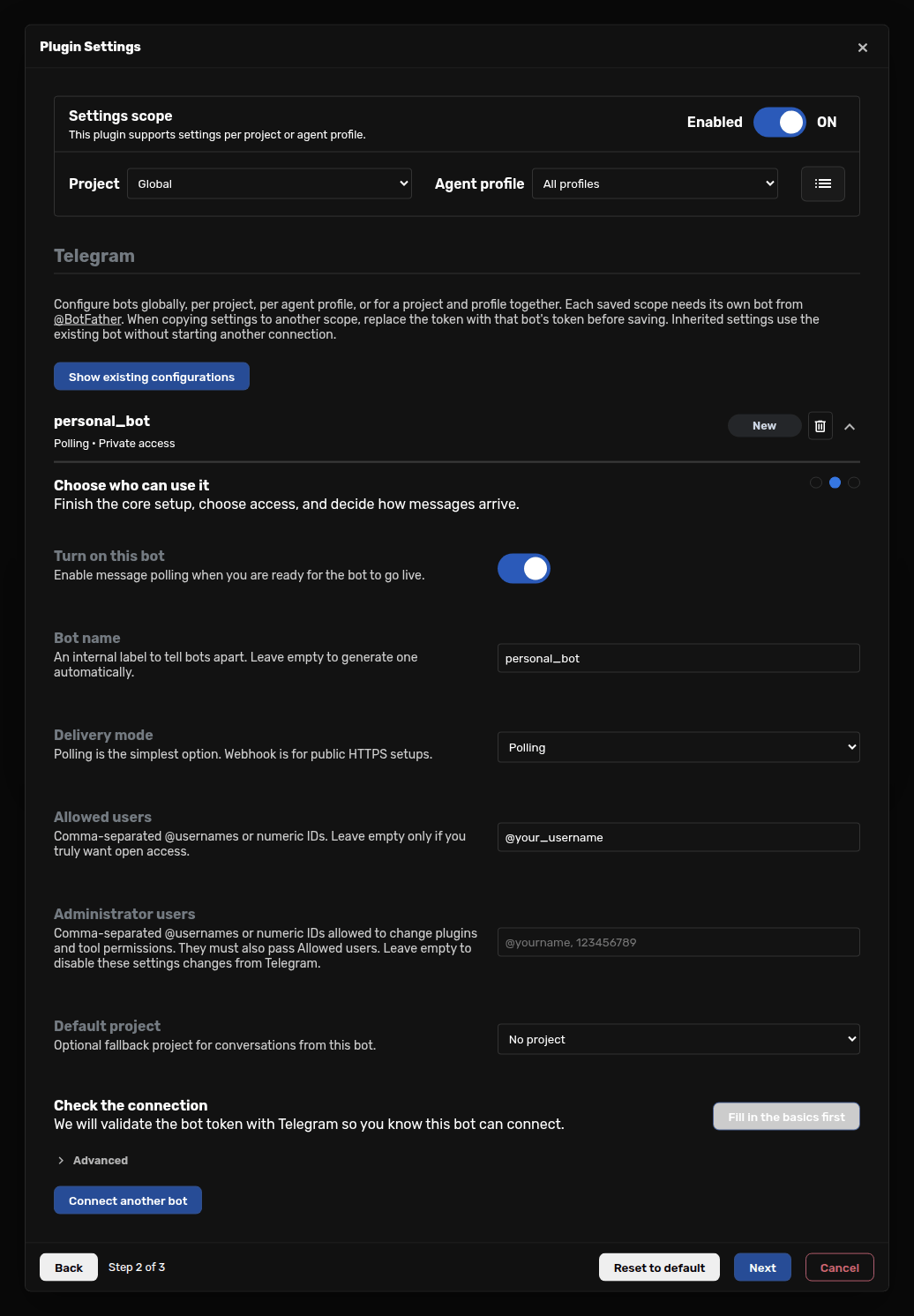
Click Next. In Shape the conversation, choose Ignore group messages for a private-message-only bot. Optional Agent instructions can ask for shorter, mobile-friendly replies. Click Save when you finish the wizard.
Allowed users must not be empty for a private bot. An empty list lets anyone who finds the bot reach your Agent Zero and use the capabilities available to its agent. A hard-to-guess bot username is not an access control.
5. Verify the full conversation
Use Check the connection in the bot card to validate the token. A successful check means Telegram accepted the credentials; it does not prove that delivery, permissions, or the AI model are working. The Live label reflects the configuration, not a completed message exchange.
After saving, allow a short time for the bot to start. In Telegram:
- Open your new bot, not BotFather, and tap Start or send
/start. - Send
/statusto check the chat's project, agent profile, and model. - Send
Reply with: Telegram is ready.and wait for the agent's response. - Find the Telegram conversation in Agent Zero's Web UI.
If /status works but the normal message fails, check the model configuration
and the conversation's error in the Web UI. If neither arrives, use the
troubleshooting table.
Choose who can use it
Allowed users is a comma-separated list, for example
@your_username, @teammate_username. Use numeric Telegram user IDs when you
know them: they keep the rule tied to the account when a username changes.
If using usernames, copy their spelling exactly and review the list after
account changes. Do not clear the list just to troubleshoot an access problem.
Administrator users is a separate list. Administrators must also pass Allowed users. Leave it empty unless you want trusted users to change settings from Telegram:
/permissionschanges the current profile's tool permissions in its scope./pluginscan change plugin activation for the whole instance.- Administrators can attach an otherwise unbound Web UI chat using
/sessions, if its project/profile is accessible to the bot.
This list is unrelated to Telegram group administrators or ownership in BotFather. Those roles do not automatically grant Agent Zero administration.
Each sender has a separate conversation binding for that bot and Telegram chat. Another Telegram user's bound sessions are not available in the session picker. Group replies are still visible to members of the group. Separate conversations and scoped routing are not a sandbox for files or tools: give trusted people access and choose suitable agent permissions.
Use commands and attachments
Send /commands to see the commands available to the current chat. Custom and
project commands can change that list. Common built-in actions include:
| Command | What it does |
|---|---|
/status |
Show the current project, agent, model, and queue state. |
/new |
Start a new conversation; keep the previous one. |
/sessions |
Choose an accessible conversation bound to this bot, user, and chat. |
/project, /agent, /model |
Open a picker; choices must respect the bot's scope and permissions. |
/stop |
Stop the current work. |
/compact |
Ask for confirmation before summarizing a long conversation. |
/copy |
Send the conversation transcript as a text file. |
/clear |
Reset the current conversation; use /new when you want to retain it. |
Use Telegram's attachment button for photos, documents, audio, voice messages, or video. Add a caption explaining what you want. Agent Zero can send files back; what it can understand or produce depends on your models and enabled tools.
Under Advanced, Attachment max age controls cleanup of downloaded
attachments in hours. 0 keeps them indefinitely. This setting does not
delete the Telegram message or act as a complete chat-retention policy.
Use projects and agent profiles
A project supplies the workspace and project instructions. An agent profile supplies the agent's role and configuration. The Settings scope selectors determine who owns the Telegram configuration:
| Project selector | Agent profile selector | Bot ownership |
|---|---|---|
| Global | All profiles | General-purpose bot; can use destinations that inherit its configuration and permit Telegram. |
| A project | All profiles | Bot stays in that project; it can use permitted profiles there. |
| Global | A profile | Bot stays on that profile; it can use permitted projects. |
| A project | A profile | Bot stays in that project and on that profile. |
Create the project/profile first, then select it at the top of Telegram settings. The chosen profile must be available in the chosen project. See Projects and Agent Profiles.
One saved configuration, one set of bot accounts
Each explicitly saved scope needs different Telegram bot accounts. For example, use one bot for personal work and another for a support project. One scope can contain several bots, but none of their tokens can also belong to another saved scope or another running Agent Zero instance.
To reuse a setup in a new scope:
- Create another bot with BotFather's
/newbot. - Select the destination project/profile in Telegram settings.
- Copy the settings you need, but replace every inherited/copied token with the token for the new bot before saving. Remove bot entries you do not need.
- Review Allowed users and Administrator users for this destination.
- Save, open the new bot in Telegram, and verify
/statusand a normal reply.
Copying a token does not clone a bot. Rotating a token also keeps the same bot identity, so it does not solve a duplicate-scope conflict.
Inheritance does not need another bot
If a scope has no saved Telegram configuration, it can inherit an existing one without starting another connection. A saved scoped configuration replaces the whole bot list for that scope; lists are not merged. Use Show existing configurations to see where overrides exist.
The Enabled toggle also has scopes. Disabling Telegram for a project/profile blocks delivery there even when the bot is inherited. An explicitly enabled scoped bot can run while the global plugin is disabled. Use Review saved activation overrides when that button is shown.
For a global bot, Default project and Advanced → User project mapping
choose where new conversations start. A mapping looks like
123456789=support_project, using the Telegram user ID and the actual project
name. These are starting destinations, not project access restrictions.
Use a project-owned bot when it must remain in one project. Changing a default
or mapping does not move an already-bound conversation; use an allowed picker
choice or /new.
To move a bot instead of creating another, remove its token from the old configuration and save before adding it to the new scope. Old chats remain, but the destination scope starts its own session bindings. Keep an existing Bot name unchanged when you want to preserve its current bindings.
Add a bot to a group
First verify a private conversation. Add the bot to the group, keep Allowed users limited to the people who should use it, and choose Group behavior:
| Choice | Behavior |
|---|---|
| Reply when @mentioned or replied to | Agent Zero handles mentions and replies to the bot among messages Telegram delivers. |
| Reply to every group message | Agent Zero handles every delivered message from allowed users. |
| Ignore group messages | Private conversations only. |
Telegram has its own Privacy Mode, separate from this setting. With privacy
enabled, start with /start@YourBotUsername and then reply to a bot message.
A plain @mention is not a reliable delivery test. If you intentionally need
every group message, change the bot's privacy setting in BotFather and re-add
it to the group so the change takes effect. Do not grant group administration
just to make replies work. See Telegram's
Privacy Mode explanation.
Welcome new members and Welcome message are optional; {name} inserts
the new member's name. Group membership and group-admin status never replace
the Agent Zero access lists.
Use a webhook
Stay with Polling unless you already operate a public HTTPS endpoint. Both modes support the same Agent Zero conversations; webhooks change how updates arrive.
- Set Delivery mode → Webhook.
- Set Webhook URL to the public Agent Zero base URL, such as
https://agent.example.com. Agent Zero appends the webhook route; do not paste a bot token or manually constructed Telegram API URL here. - Under Advanced, set Webhook secret to a random value of 32–256 letters, digits, underscores, or hyphens. This is separate from the bot token. One way to generate a suitable value locally is:
bash
   python3 -c 'import secrets; print(secrets.token_urlsafe(32))'
- Save. Ensure Telegram can reach the endpoint through a valid HTTPS setup and
that your reverse proxy forwards the
X-Telegram-Bot-Api-Secret-Tokenheader. Keep Web UI authentication in place; a webhook is not a reason to expose the rest of Agent Zero without protection. - Repeat
/statusand the normal-message test. The connection-check button validates the token, not public webhook reachability.
Agent Zero rejects missing or incorrect webhook secrets, and rejects webhook delivery to polling bots. Returning to Polling removes its webhook. Do not run another polling process or service with the same bot token. Telegram's webhook FAQ covers its HTTPS requirements.
Upgrading an existing setup
You do not need to recreate working bot settings. Before the first bot lifecycle pass after this upgrade, Agent Zero automatically backs up existing Telegram configurations, activation overrides, and session mappings under:
usr/plugins/_telegram_integration/backups/config-scopes-v1/
Existing values and mappings are retained. The one automatic settings change is to generate a valid secret for a legacy webhook configuration whose secret is missing or invalid. Valid secrets are kept. No administrator is added, and access lists are not widened or merged. A pre-existing empty Allowed users list stays open, so review it after upgrading.
The backup contains credentials: keep it private and include your persistent
usr/ data in normal backups. It is a migration
snapshot, not a replacement for a complete backup. No manual migration command
is needed.
Scoped settings alone no longer pause every bot. If old configurations reuse the same bot, all conflicting connections pause until you resolve the duplicate:
- Open Show existing configurations and inspect each saved scope.
- Decide which scope should keep the original bot.
- Remove that bot entry/token from other scopes, or replace it with a newly created bot. Save each change. Merely turning a duplicate bot off does not remove its saved ownership.
- Review activation overrides and test again after the manager reloads.
No conflicting files are automatically deleted and no scope is silently chosen over another. Keep bot names stable; deliberately renaming a bot or moving it to another scope starts new session bindings while retaining the previous chats.
Troubleshooting
| What you see | What to check |
|---|---|
| Telegram is missing from the list | Choose Builtin, not Browse or Custom. Search for Telegram Integration. |
| Token check fails | Copy the token from the correct BotFather bot, remove accidental whitespace, and check outgoing network access. If exposed, revoke it in BotFather and update the owning configuration. |
| Token check passes, but no replies | Save the settings; check both Enabled and Turn on this bot, Allowed users, destination scope, and activation overrides. Open the bot and send /start. Check Web UI notifications/logs for startup errors. |
/status works, but normal messages fail |
Open the same chat in the Web UI and check its model, credentials, provider availability, and tool errors. |
| Works privately, silent in a group | Check Group behavior, the sender's access entry, and Telegram Privacy Mode. Test with a command addressed to the bot and a reply to its message. |
| Save reports a reused bot, or bots pause after upgrade | Review every saved configuration. Remove or replace duplicate bot accounts, including old/rotated tokens. Check that another instance is not running the same bot. |
/project or /agent refuses a choice |
The bot must stay within its owning scope; the destination must permit Telegram, inherit the right bot, and make the profile available. |
/sessions does not show a chat |
Only accessible sessions belonging to this bot, user, and Telegram chat are listed. An explicit administrator may also attach an unbound Web UI chat. |
/plugins or /permissions is unavailable |
The sender must pass Allowed users and be listed in Administrator users. An empty administrator list intentionally disables those settings changes. |
| Webhook bot is silent | Check the public base URL, HTTPS, reverse-proxy routing, and secret header. Use a real message to test delivery. |
| Saved settings cannot be read | Review the affected configuration in the Web UI or restore it from your backup. Delivery pauses rather than falling back to more permissive settings. |
For implementation details, see the plugin reference and Agent Zero on DeepWiki.