Documentation
Using Agent Zero
Start with one concrete request, follow the work, and open the result. These are the controls you will use along the way.
Send your first message
Open the Web UI URL shown by Launcher or your installer. Type directly into the welcome message box and press Enter; Agent Zero creates the chat for you. New Chat in the sidebar also starts a fresh conversation.

Create a one-page Markdown plan for a 15-minute team kickoff.
Include a goal, three agenda items, and next steps.
Save it as /a0/usr/workdir/docs-demo-20261030/kickoff-plan.md.
If models need setup, the chat offers Cloud provider, AI account, and Local model. Complete onboarding; Agent Zero retries the message it was holding. You do not need to send it again.
Expand tool rows to inspect what happened. When the result includes a file link, open it to inspect the artifact.

Find a chat or message
Use Search below Chats to enter a chat title or a phrase you remember. Matching message excerpts appear under the chat name. Click a result to open the conversation. Your project, status, and activity filters still apply.
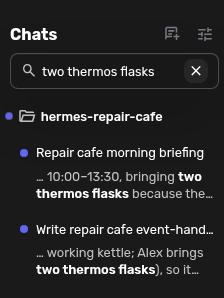
Clear the query with the close button or Escape. If you do not see the field, open Sidebar view options → Search → Standard. Compact puts search behind a magnifier; No search hides it. Search covers the current chat list, not deleted or archived chats, and is separate from the Welcome Chats search.
For conversations from another app, see Move your chats into Agent Zero.
Customize or restore Welcome
Drag a section's handle to move it, or click it for Move up and Move down. With the handle focused, arrow keys move the section; Home and End move it to the beginning or end.

Use a section's close button to hide it. Show all dismissed at the bottom restores hidden sections, notices, and discovery cards, including the greeting and message box. It restores visibility without resetting the order. These layout choices are saved in this browser.

The adjacent puzzle button opens Plugin Hub with welcome plugins selected. Additional panels depend on which plugins you have installed.
Steer a running chat
| Control | What it does |
|---|---|
| Pause Agent / Resume Agent | Pause processing and continue it later. |
| Stop agent | The square send button stops the current run. It appears while the agent is running and the message box is empty. |
| Add to queue | Add a follow-up while a run is active. Queued messages remain visible above the composer. |
| Send now / Send all | Send one queued message immediately, or combine and send the queue. Remove an item to cancel that queued message. |
| Nudge | Prompt the agent to continue when it needs another push. |
| Compact | Summarize a long conversation to reduce the context it uses. |
| + → History / Context | Inspect the conversation history or the current model context. |

Use a message's Branch chat action to try a different direction from that point. The original chat stays unchanged.
Set a goal for longer work
Choose + → Goal mode to prefill /goal , write a concrete objective, then send it.
/goal Prepare the kickoff plan and a short review checklistAn active goal keeps the agent working through intermediate updates until it marks the goal complete or blocked. The goal strip lets you edit, pause, resume, or delete the goal. Pausing a goal is separate from Pause Agent; use the latter when you need to pause the chat's processing too.

Goals belong to the current chat. Use scheduled tasks when the work should run later or on a schedule.
Choose what the task needs
- Projects keep related files, instructions, memory, and settings together.
- Agent Profiles define a role, instructions, model preset, and capability permissions.
- Model Presets choose the models; Skills add focused procedures.
- Browser and Desktop let you watch visual work in Canvas.
- For host-machine files, use Launcher Host access, A0 CLI, or an explicitly shared folder from the Installation guide.